Set up VPN Super on iPhone or iPad in minutes. Download from the App Store, choose free or Premium, allow VPN configuration, and connect securely.
Looking to get started with VPN Super on iOS? This step-by-step guide walks you through everything you need to install VPN Super on your iPhone or iPad and get connected in minutes.
Download VPN Super from the App Store and get connected in minutes.
To ensure a smooth VPN Super iPhone or iPad setup, make sure you have:
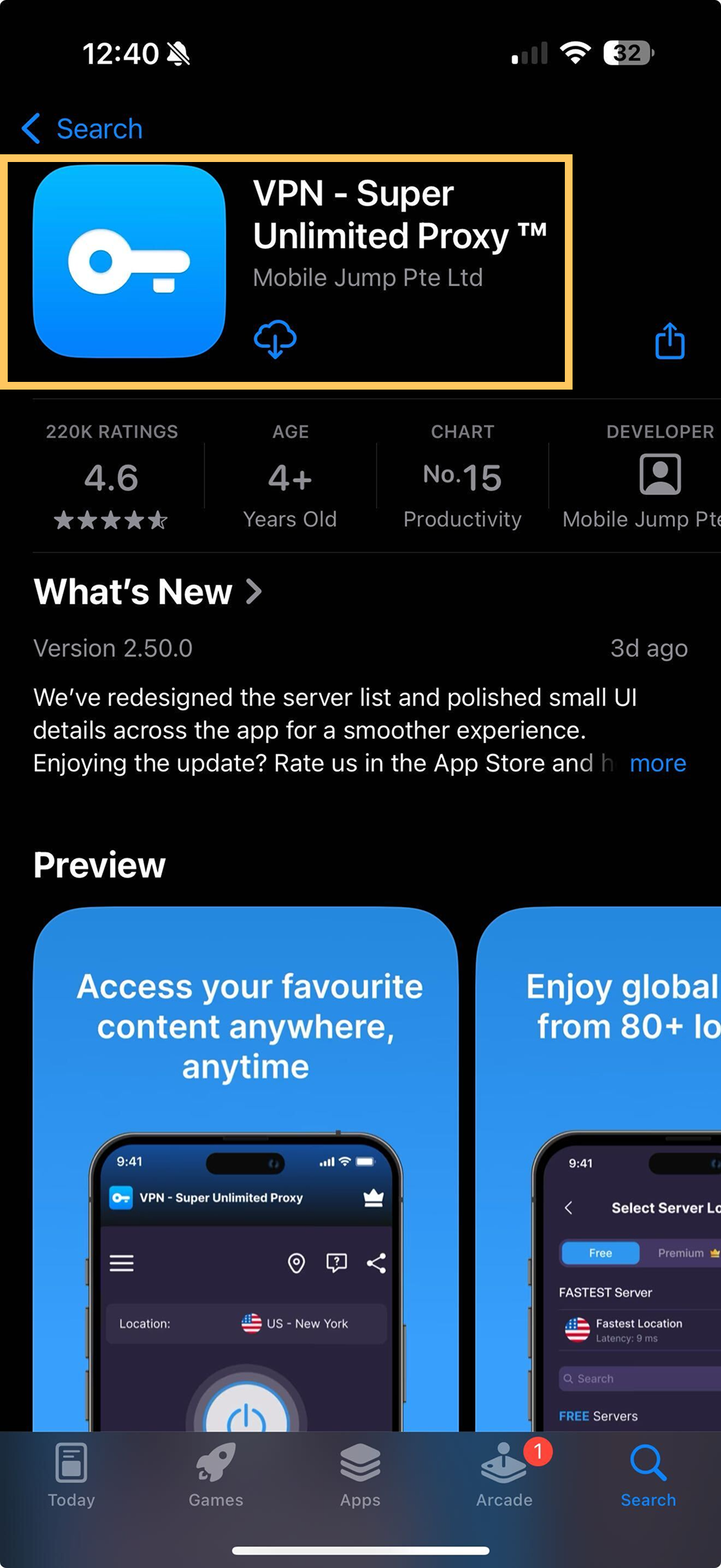
Download the VPN Super app here or open the App Store on your iPhone or iPad and search for "VPN - Super Unlimited Proxy". Tap Get and wait for the download to complete.
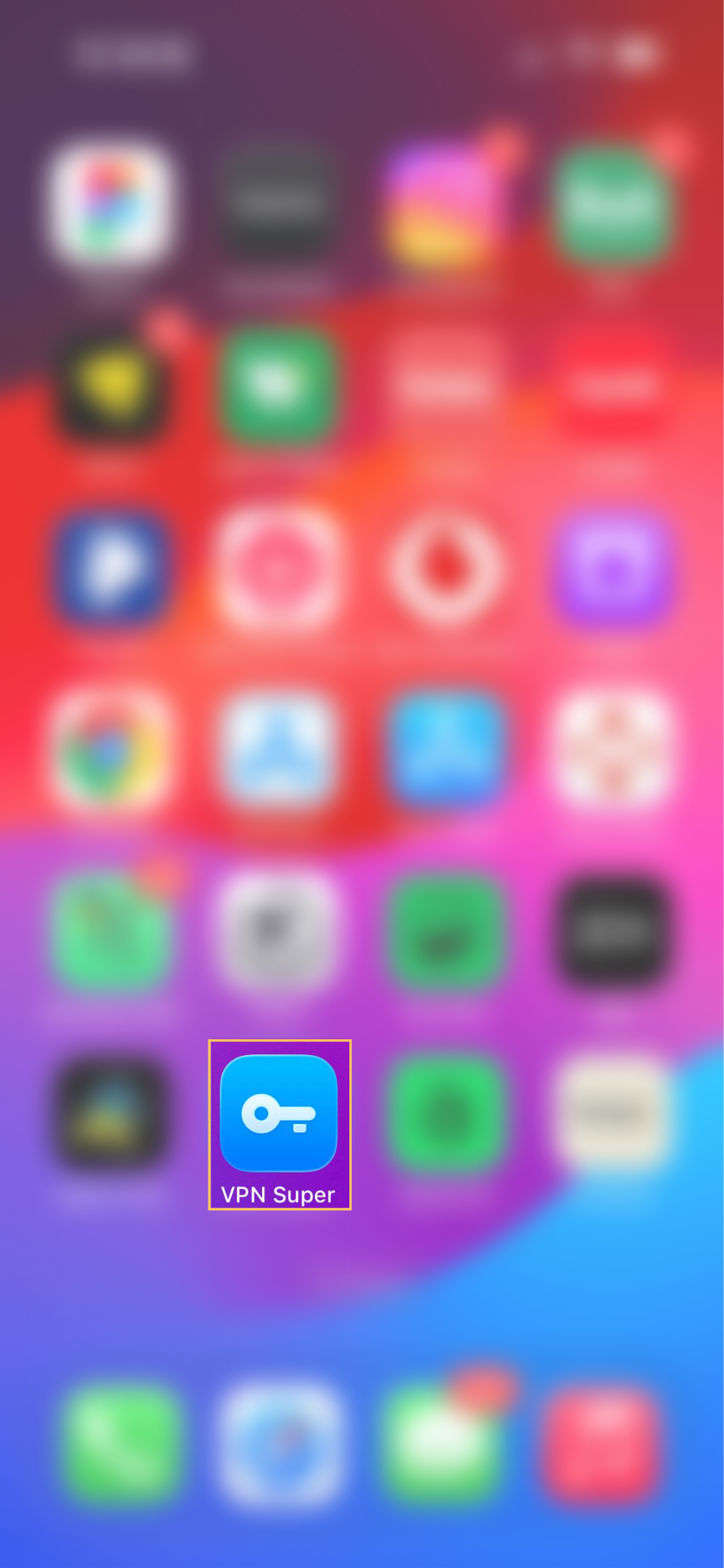
Once installed, tap Open or find the VPN Super icon on your home screen to launch the app.
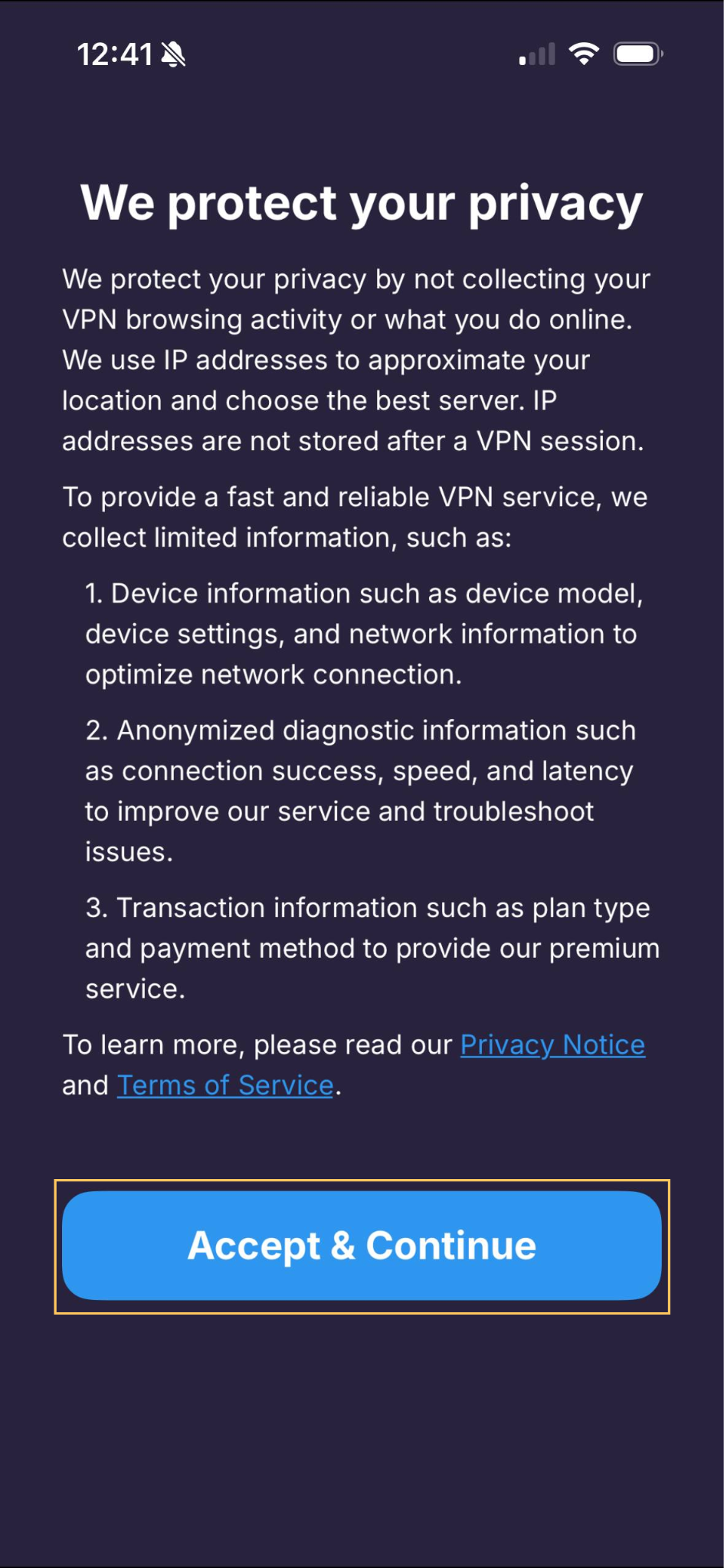
You will see a Privacy Notice explaining what information VPN Super collects. Tap Accept & Continue to proceed.
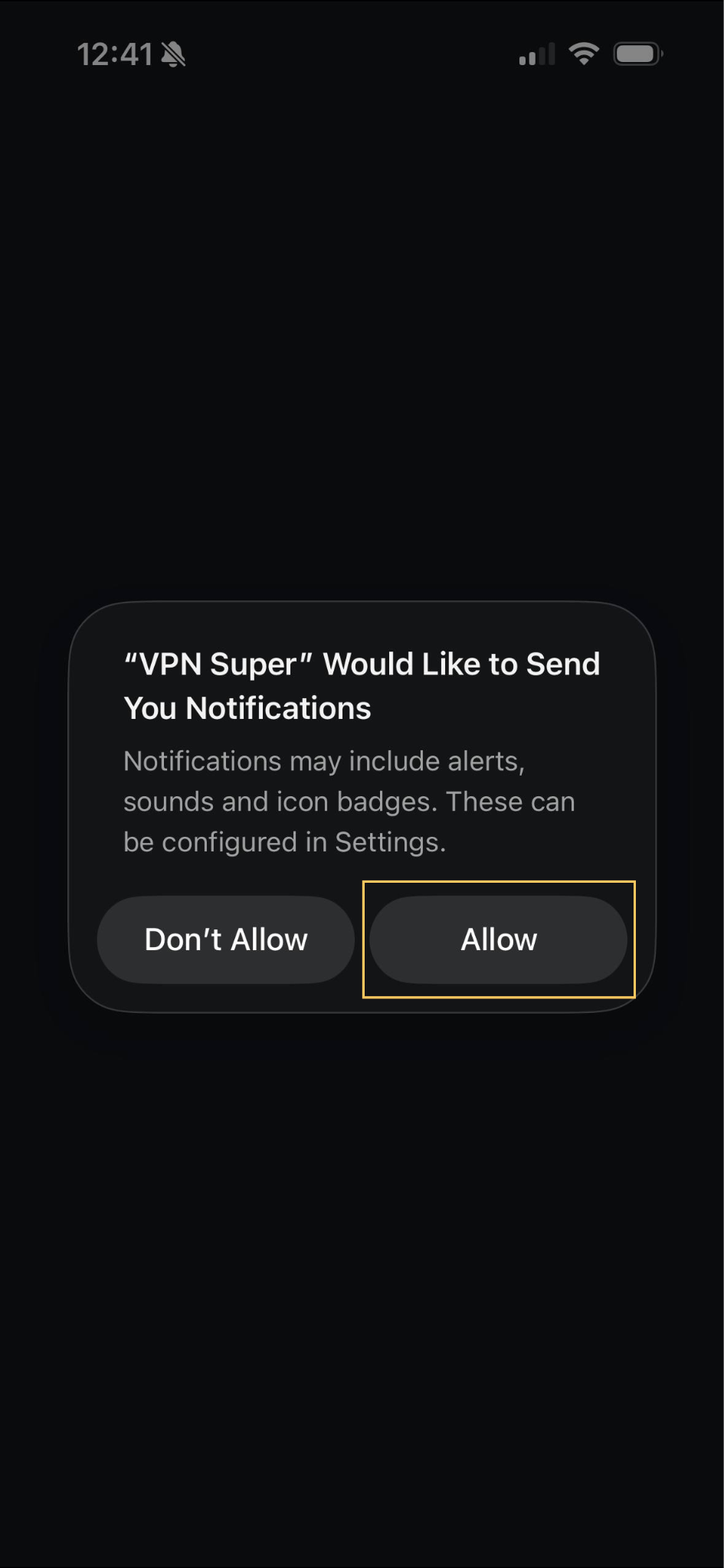
Next, you'll be prompted to grant notification permissions. To connect to VPN, you must allow VPN Super to add VPN configurations. Without this profile configuration, your device cannot establish the necessary VPN tunnel, and the VPN connection would not be functional.
VPN - Super Unlimited Proxy offers both a Premium and a free version.
For an ad-free experience and speed-optimized servers, choose a Premium plan that works best for you. If you are an existing subscriber, tap on “Restore Purchase” to sign in.
To use the free version of VPN Super, tap “Proceed with Ads”.
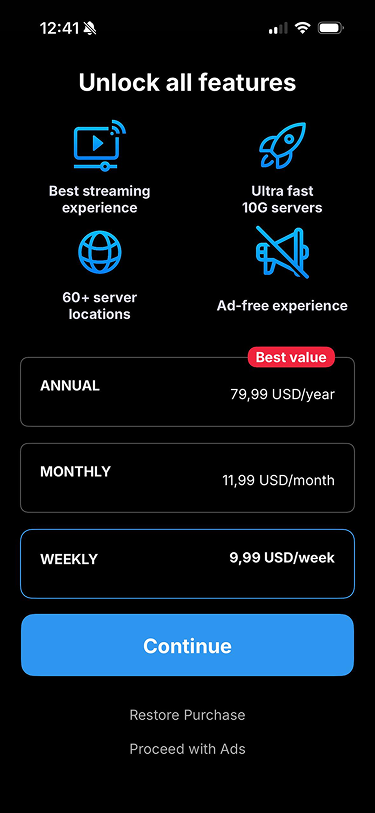
What’s the difference between the free and Premium versions?
If you’d like to try Premium benefits without committing to a subscription, you can enjoy a free 7-day trial with most of our subscription plans.
If you decide to purchase a Premium subscription, you will then be asked to create an account.
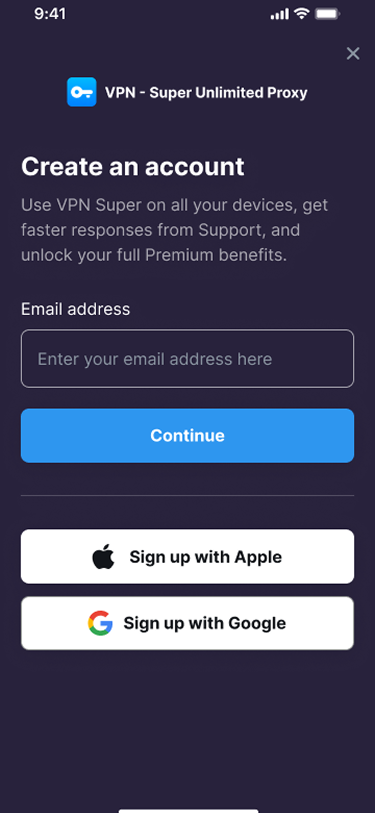
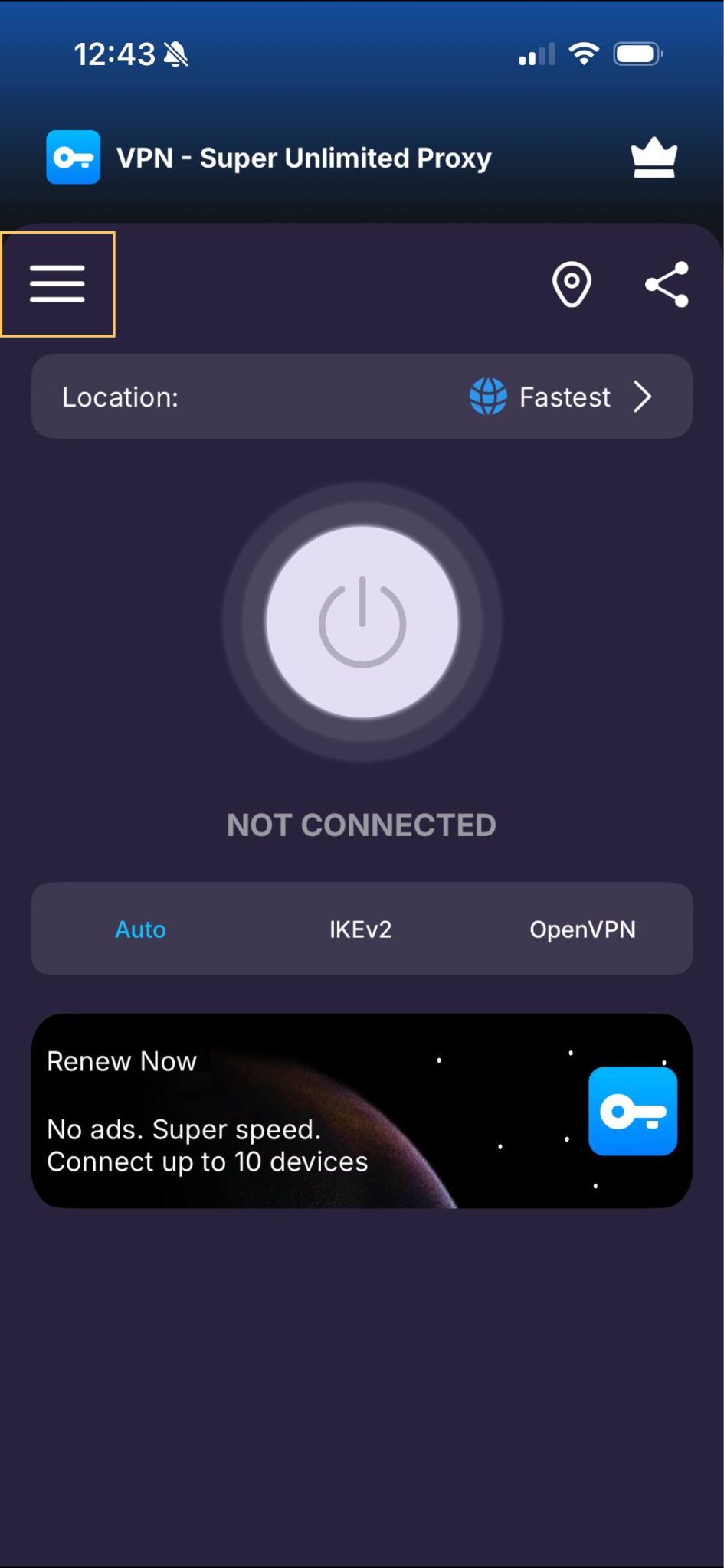
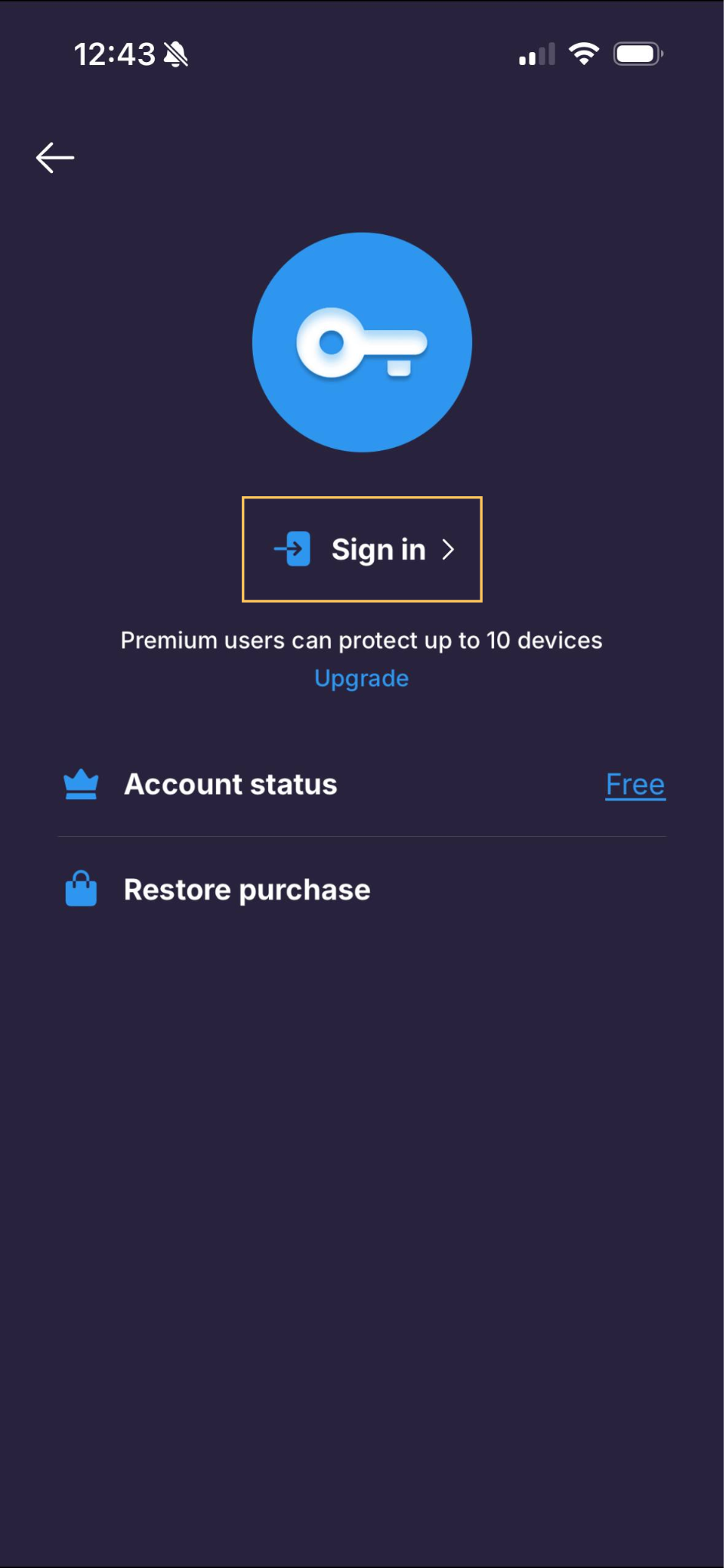
Already purchased a subscription before? Here's how to sign in from the home screen.
Tap the Hamburger Menu (☰) on the home screen.
In the side menu, tap My account.
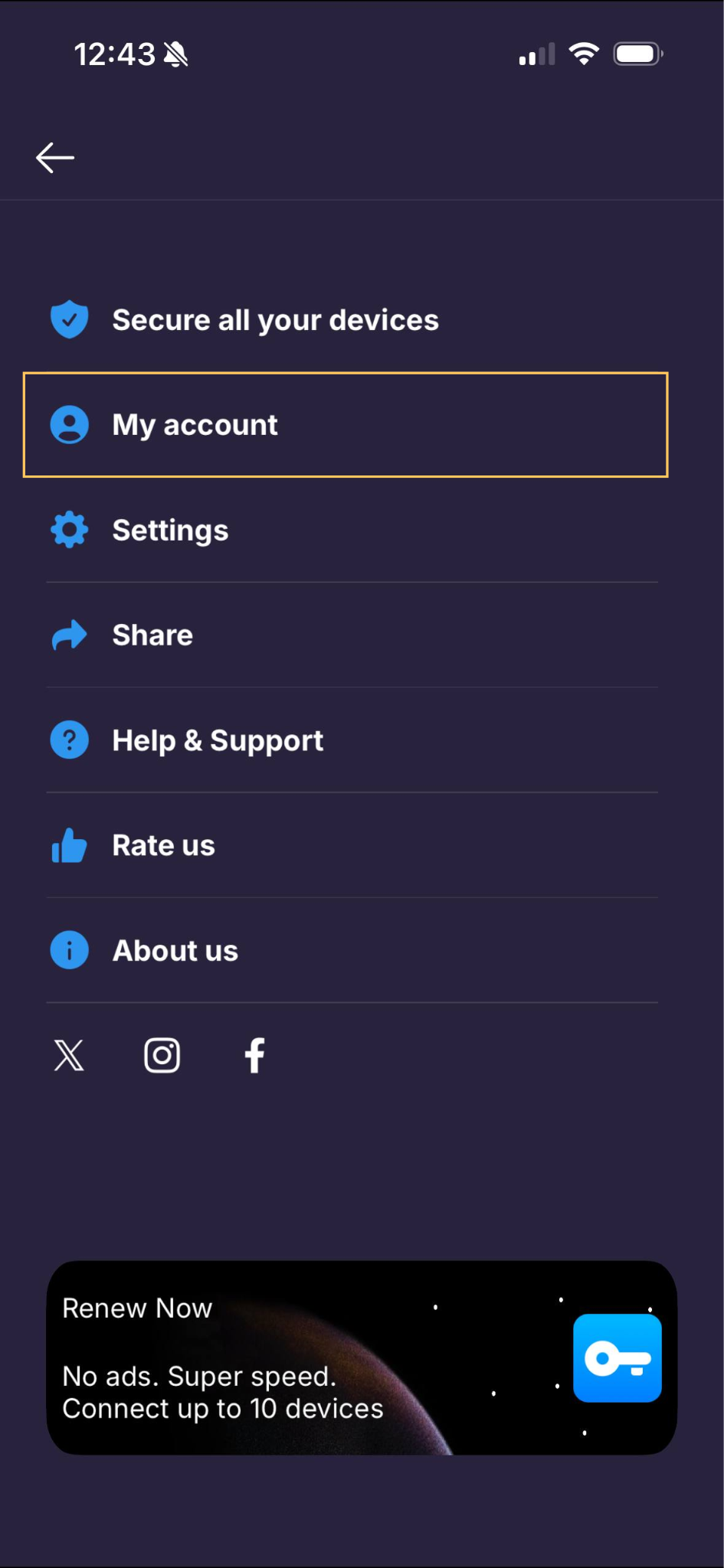
Enter your Premium subscription email and password to sign in.
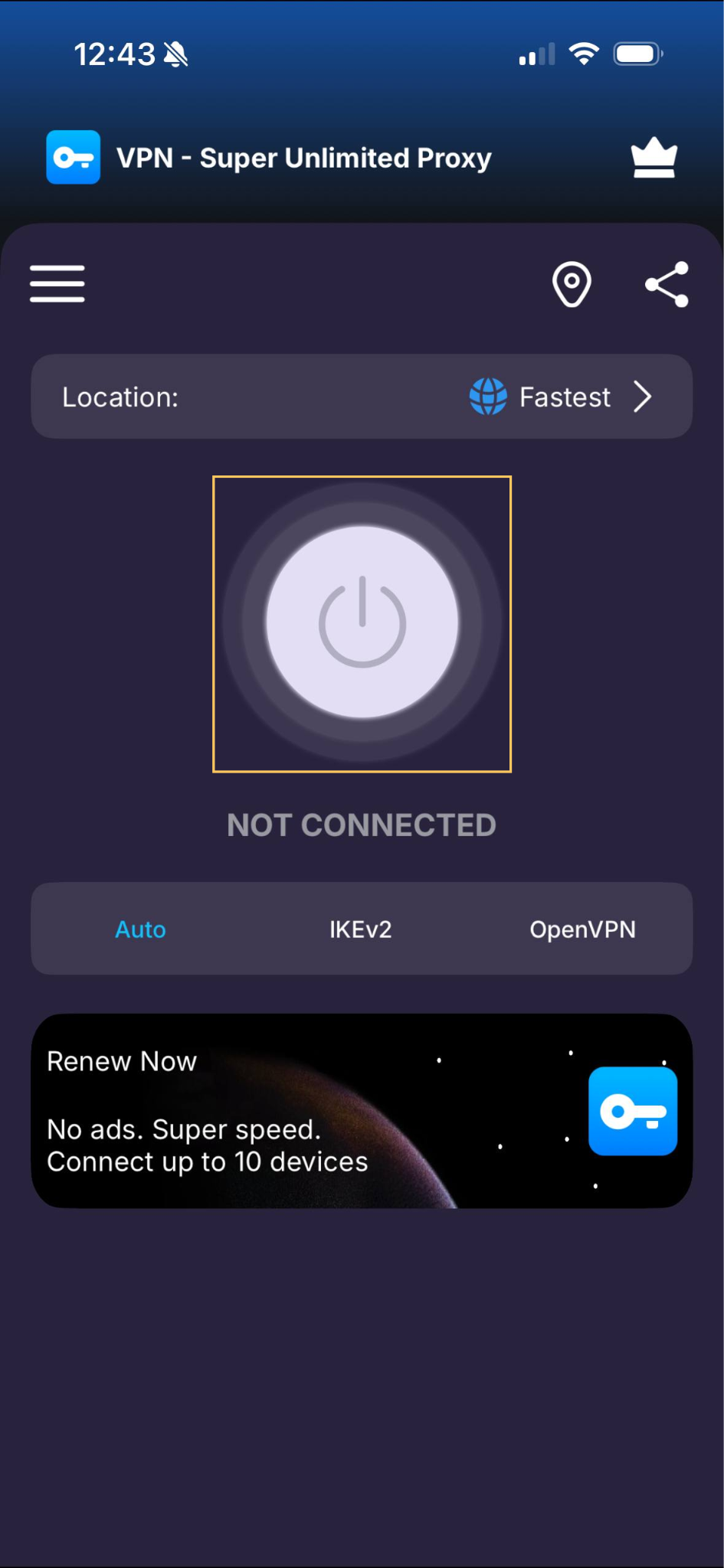
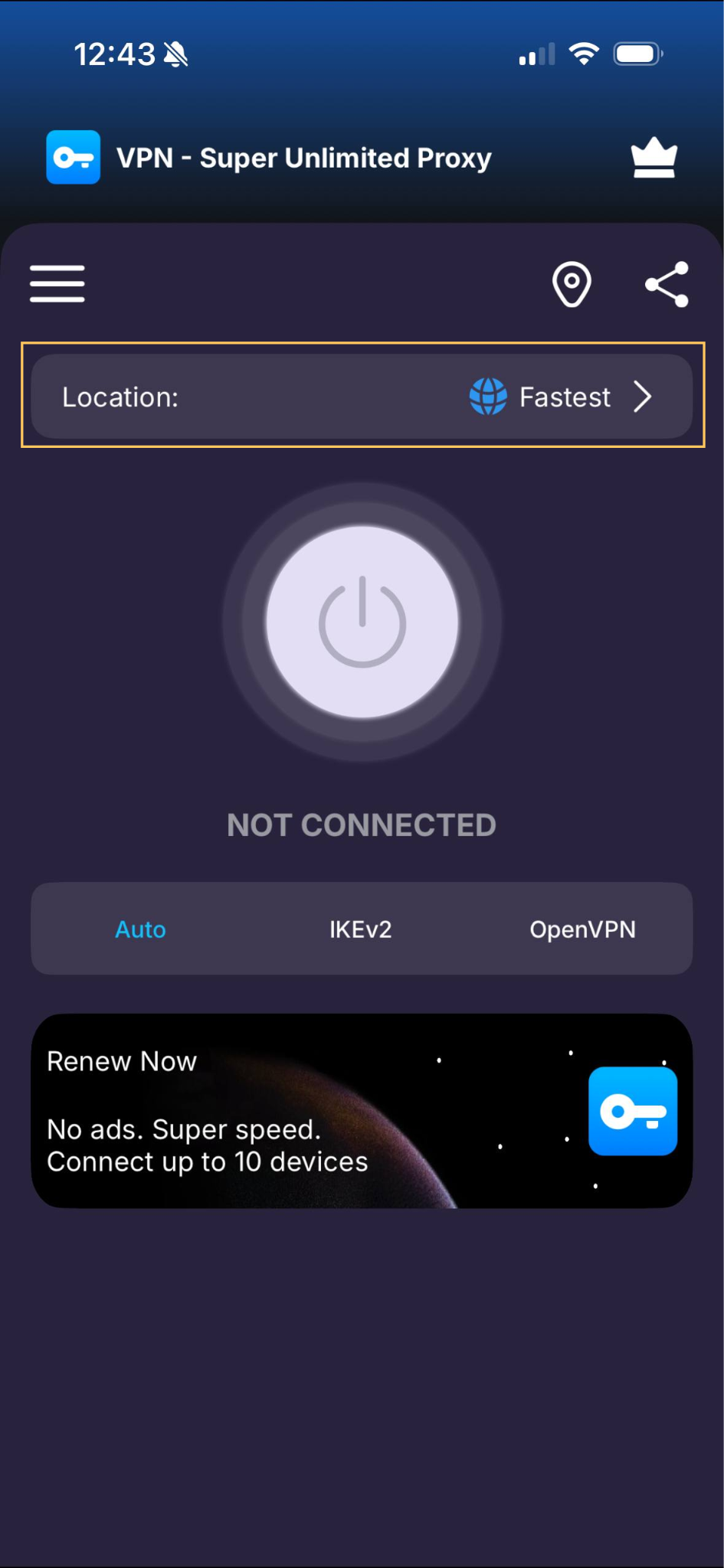
From the home screen, tap the Connect button to automatically connect to the fastest available server.
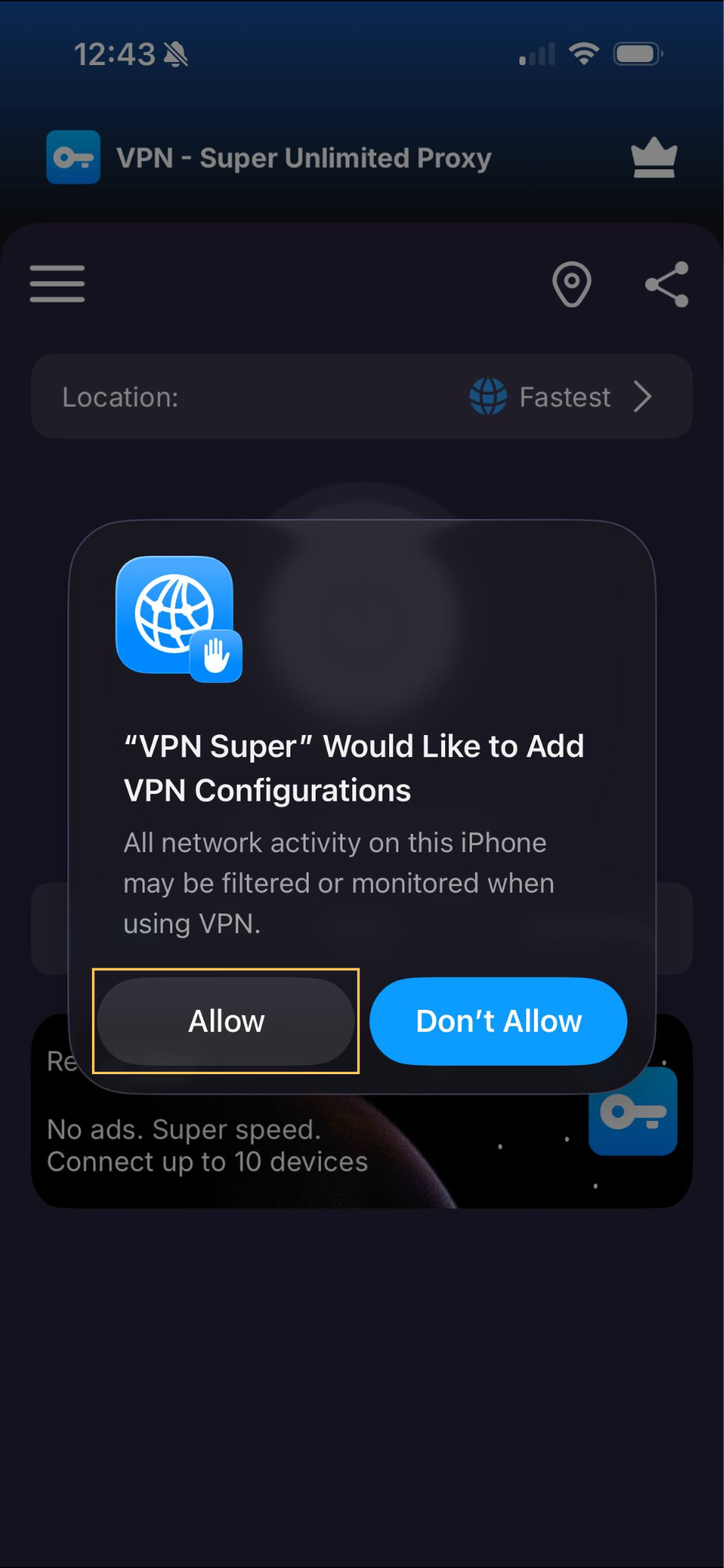
On your first connection, iOS will ask for permission to add VPN configurations to your device. Tap Allow to proceed. You may be prompted to confirm using your passcode.
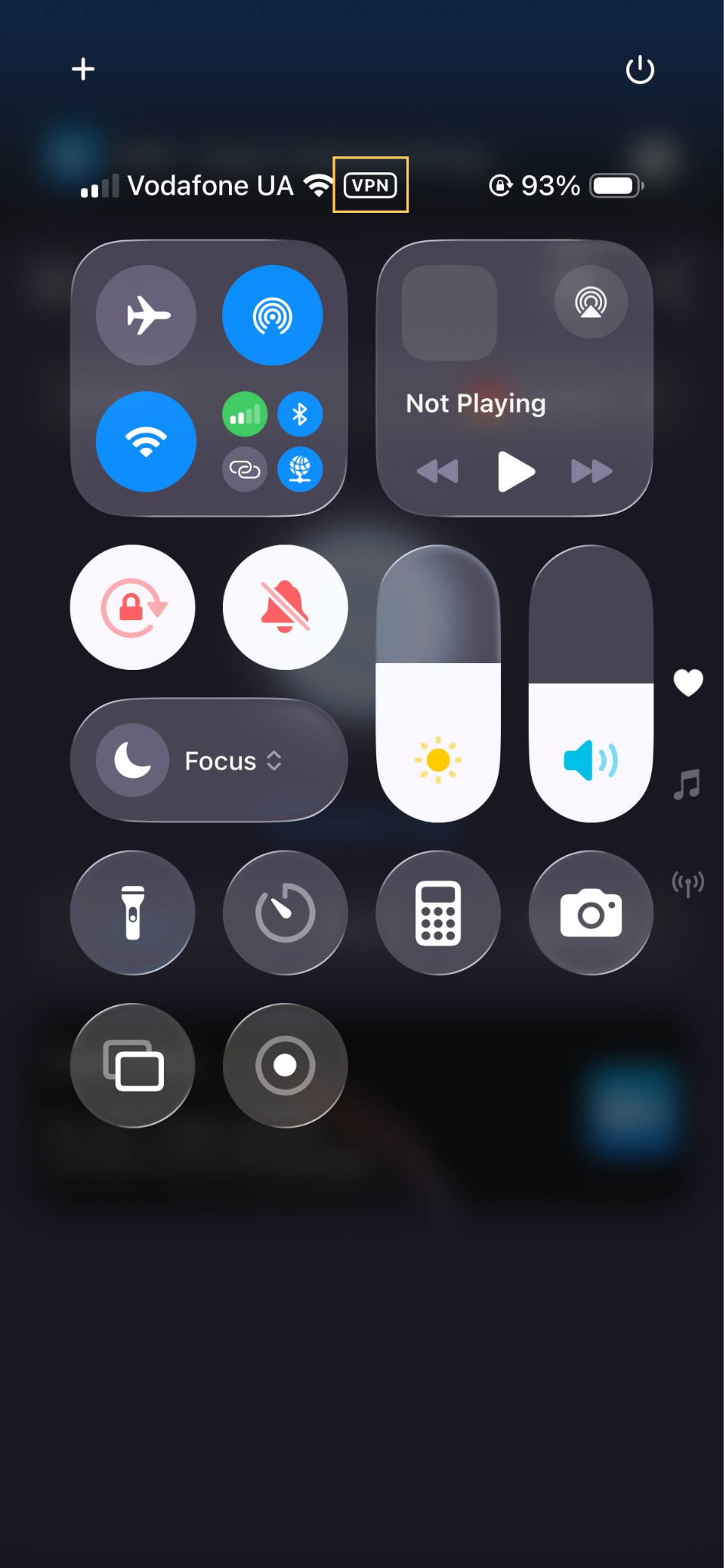
Once connected, you’ll see a VPN indicator in your iPhone’s status bar. Your internet connection is now encrypted and secure.
Want to connect to a specific country or region? Tap the server location selector to browse and choose from the available server list.
Is VPN Super free on iPhone? VPN Super offers both a free and a Premium version. The Premium version unlocks faster speeds, more server locations, and protection on 10 devices, including your PC, Apple TV, or Android TV. You can subscribe directly in the app by tapping the crown icon.
Does VPN Super work on all Apple devices? VPN Super is compatible with iPhones and iPads running iOS 16 and above.
Will VPN Super disconnect when I switch networks? VPN Super will automatically reconnect if your connection drops or if you switch between Wi-Fi and mobile data, as long as Always-On VPN is turned on in the app menu (☰) → Settings.
How do I disconnect the VPN? On the home screen, tap the Connected button—it switches to Disconnected. If you'd rather disconnect from the iOS Settings app, first open the app menu (☰) → Settings and turn off Always-On VPN. Otherwise, the VPN may reconnect automatically. With Always-On VPN off, the VPN won't reconnect automatically if your connection drops.
Does deleting the app cancel my subscription? No. Deleting the VPN Super app from your iPhone or iPad does not cancel your subscription. To cancel, you must go to Settings → Your name → Subscriptions and cancel from there. Learn more about how to cancel your subscription.
I’m having connection issues—what should I do? Try switching to a different server location, disconnecting and reconnecting to VPN, or restarting the app. If you have other VPN apps on your device, remove their VPN profiles: open the Settings app → VPN, tap the ⓘ next to any profile that isn't VPN Super, then tap Delete VPN. For persistent issues, submit a request to our Support Team.
What happens if I don’t allow VPN configurations?
If you decline or skip the VPN profile installation:
Essentially, VPN Super won’t work as intended.
I accidentally denied permissions to install VPN configurations. What do I do?
If you accidentally denied it, uninstall the VPN Super app and reinstall it to trigger the prompt again.
Can I delete the VPN profile later?
You can remove the VPN profile whenever you want. Here’s how:
Just a heads up—once you delete the profile, the VPN connection will no longer work unless you reinstall it.
If you run into any issues during installation or setup, our Support team is ready to help.
Submit a request and we’ll get back to you.
Was this article helpful?
Thank you! Your feedback means a lot to us.
We will work on improving this article.