Set up VPN Super on Windows in 4 quick steps. Download, install, sign in with your Premium account, and connect to the fastest server in under 5 minutes.
Want to use VPN Super on Windows? This guide shows you how to install VPN Super on Windows in just a few minutes.
Download VPN Super on your Windows device and get connected in minutes.
Make sure you have the following before starting your Windows VPN setup:
Don’t have a subscription yet? Get one on our website or through the iOS or Android app before setting up on Windows.
Click here to download VPN Super for Windows.
Open your Downloads folder and find the VPN Super installer file.
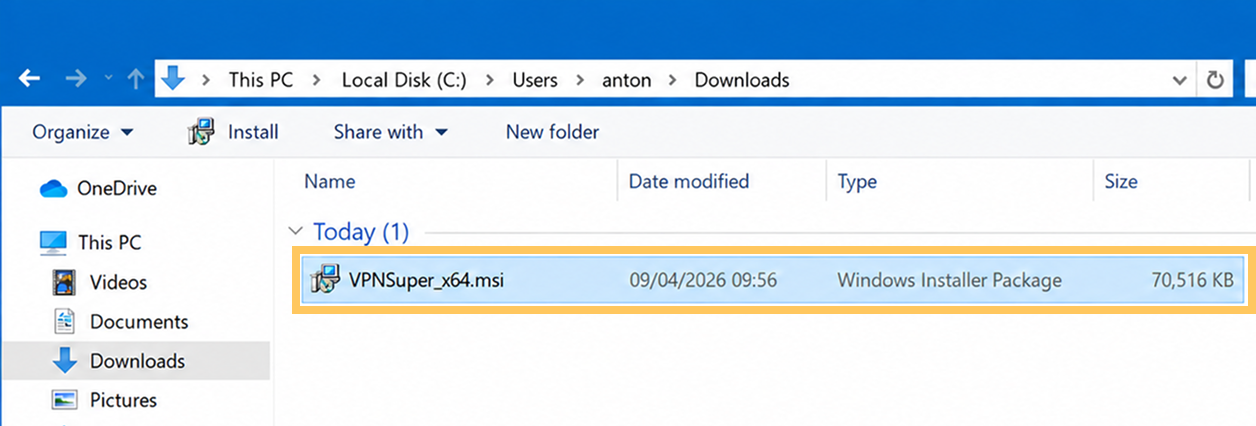
Double-click the installer to launch it.
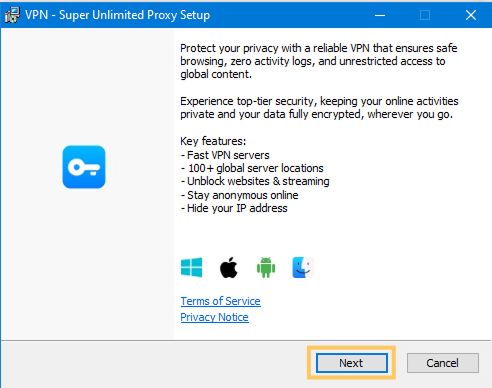
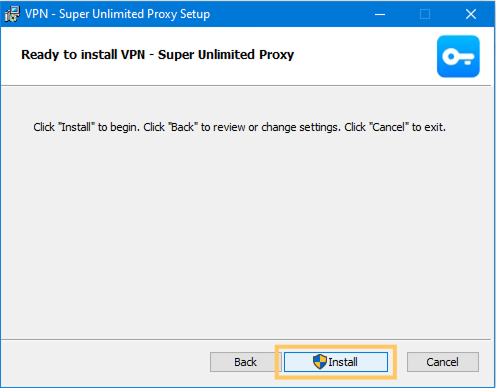
Follow the on-screen setup instructions and click Install when you're ready to begin.
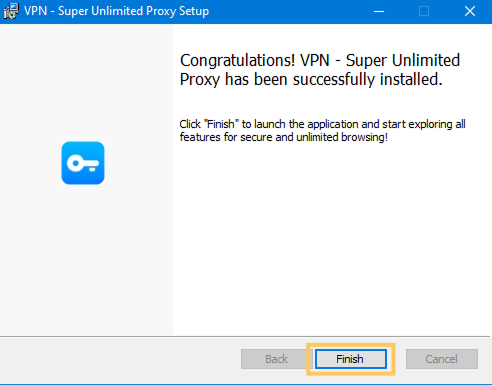
Wait a few minutes for the installation to complete, then click Finish.
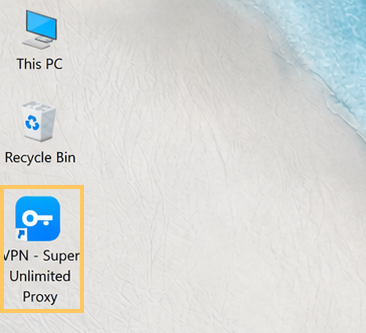
Open VPN Super for Windows.
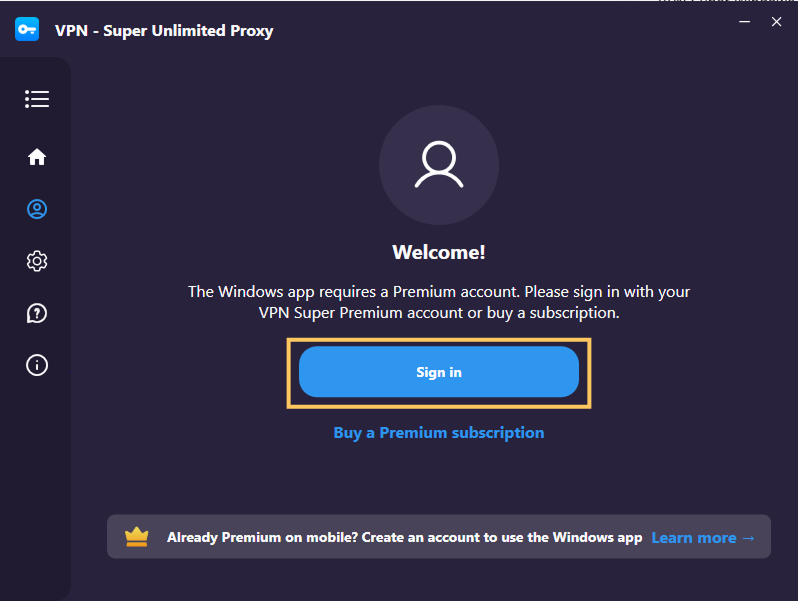
Click “Sign In” to sign in to your VPN Super account. Don't have one yet? Click “Learn more →” to create your VPN Super account.
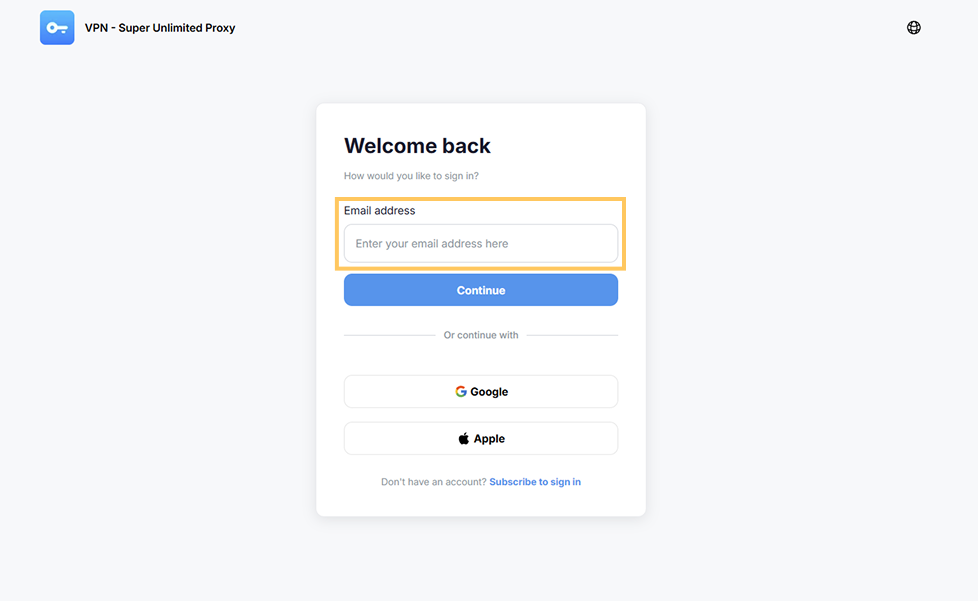
Enter the email address and password associated with your Premium subscription.
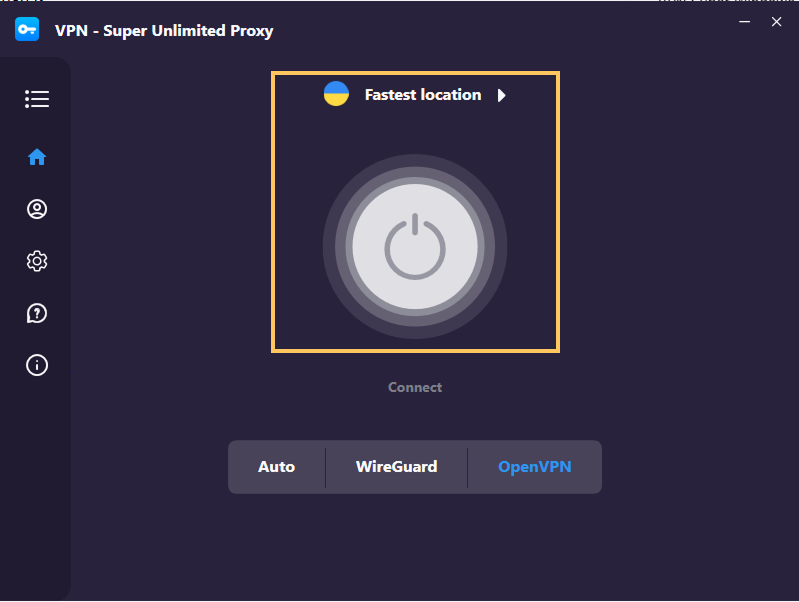
Once signed in, you’re ready to connect. Select a server location or click the Connect button to automatically connect to the best server. Your connection is now encrypted and secure.
We’re constantly improving VPN Super for Windows, and your feedback helps us ensure the best experience for everyone. If you encounter a bug, performance issue, or usability problem—or just have a suggestion—we’d love to hear from you.
To send feedback from within the app:
You can also submit a request to our Support team.
Does VPN Super for Windows require a paid subscription? Yes. Unlike the mobile apps which support a free version, the Windows version requires an active Premium subscription to use. You can purchase a plan on our website or through the iOS or Android app.
Which versions of Windows are supported? VPN Super for Windows supports Windows 11 and recent versions of Windows 10. If your system is too old, the installer will let you know and help you update.
Keeping Windows updated not only lets you use VPN Super, but also protects your computer from security vulnerabilities. Enable automatic updates to ensure you’re always on the latest version.
Can I use the same account on Windows and mobile? Yes. Sign in with the same email and password you use on iOS or Android, and your subscription will carry over automatically.
Does deleting the app cancel my subscription? No. Uninstalling VPN Super from your Windows PC does not cancel your subscription. To cancel, sign in to your account or refer to our cancellation guide.
Ran into an issue during installation or setup? Submit a request to our Support team.
Was this article helpful?
Thank you! Your feedback means a lot to us.
We will work on improving this article.