
Looking to get started with VPN Super on Android? This step-by-step guide walks you through everything you need to install VPN Super on Android and get connected in minutes.
Make sure you have:
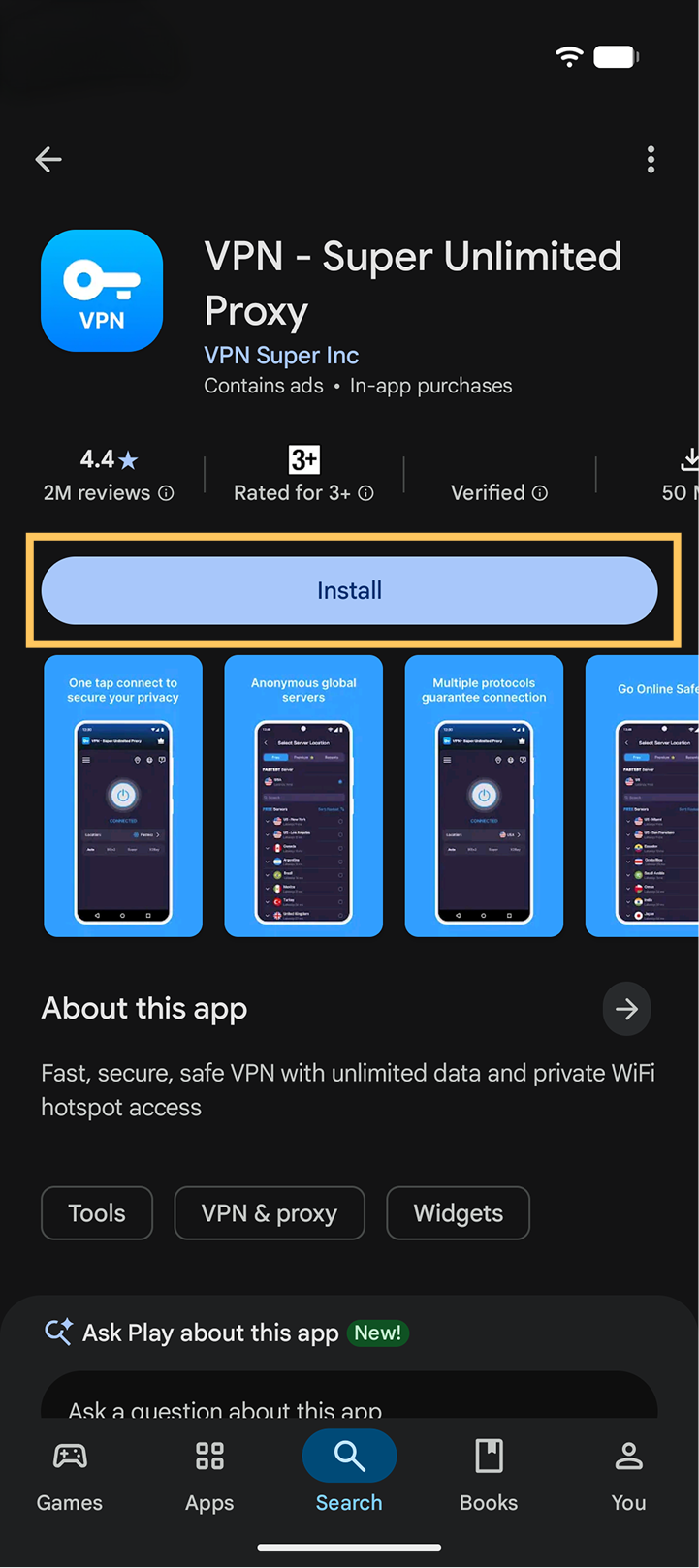
Download the VPN Super app here or open the Google Play Store on your Android device and search for "VPN - Super Unlimited Proxy". Tap Install and wait for the download to complete.
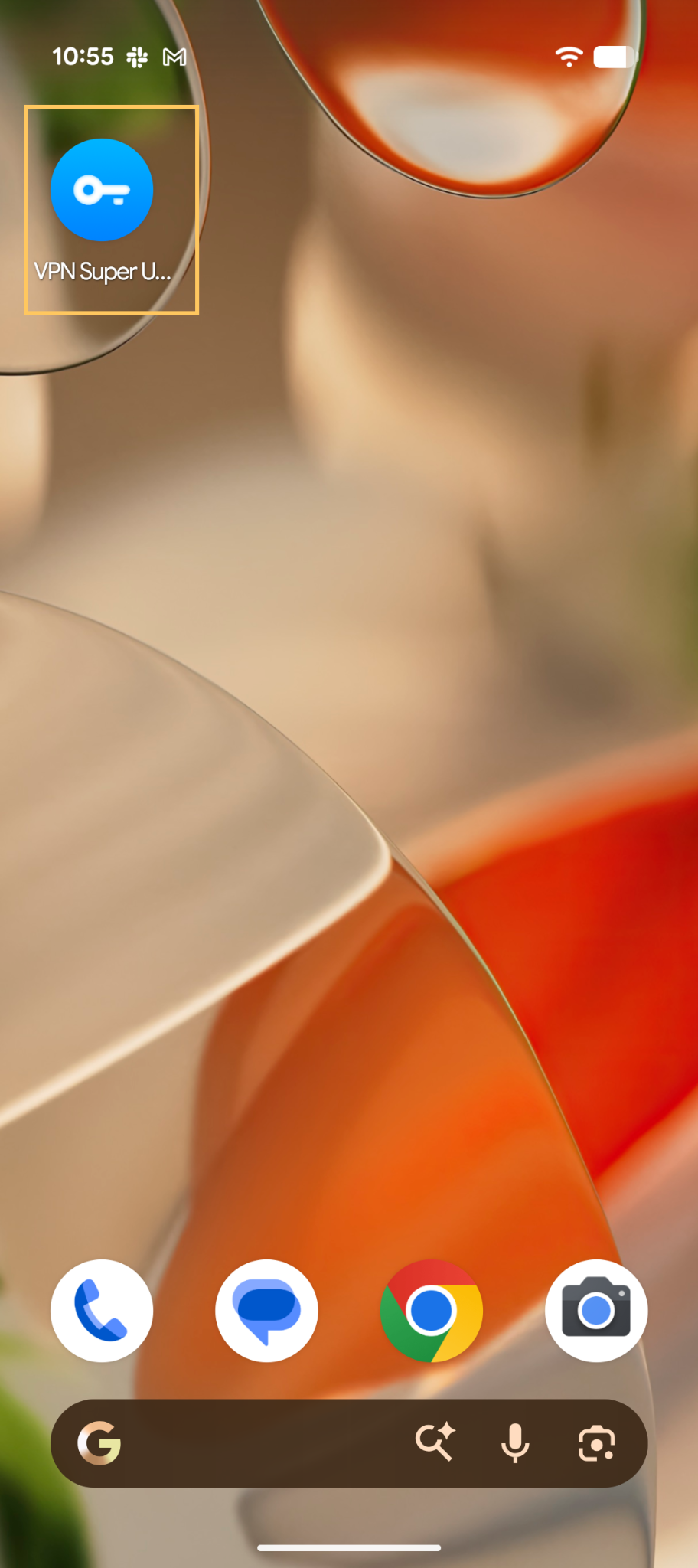
Once installed, tap Open or find the VPN Super icon on your home screen or app drawer to launch it.
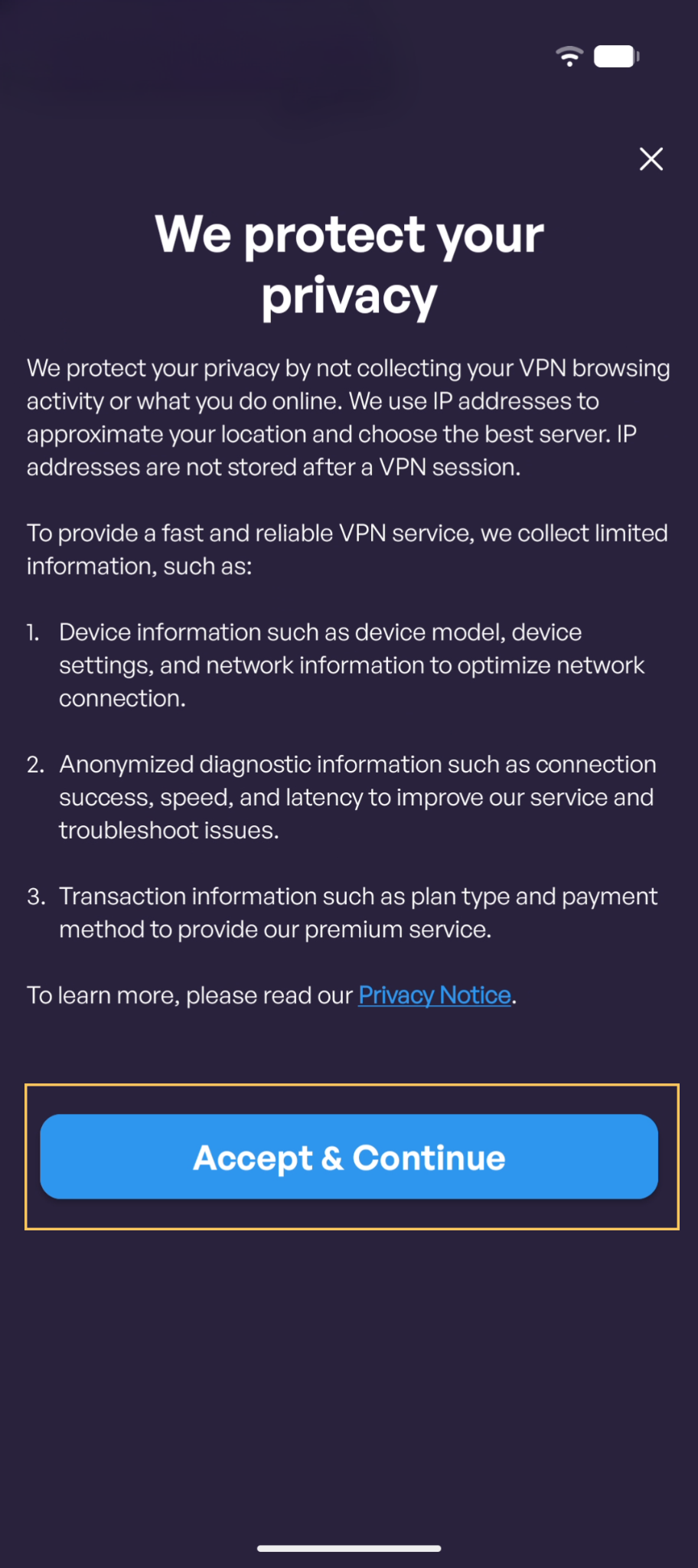
You will see a Privacy Notice explaining what information VPN Super collects. Tap Accept & Continue to proceed.
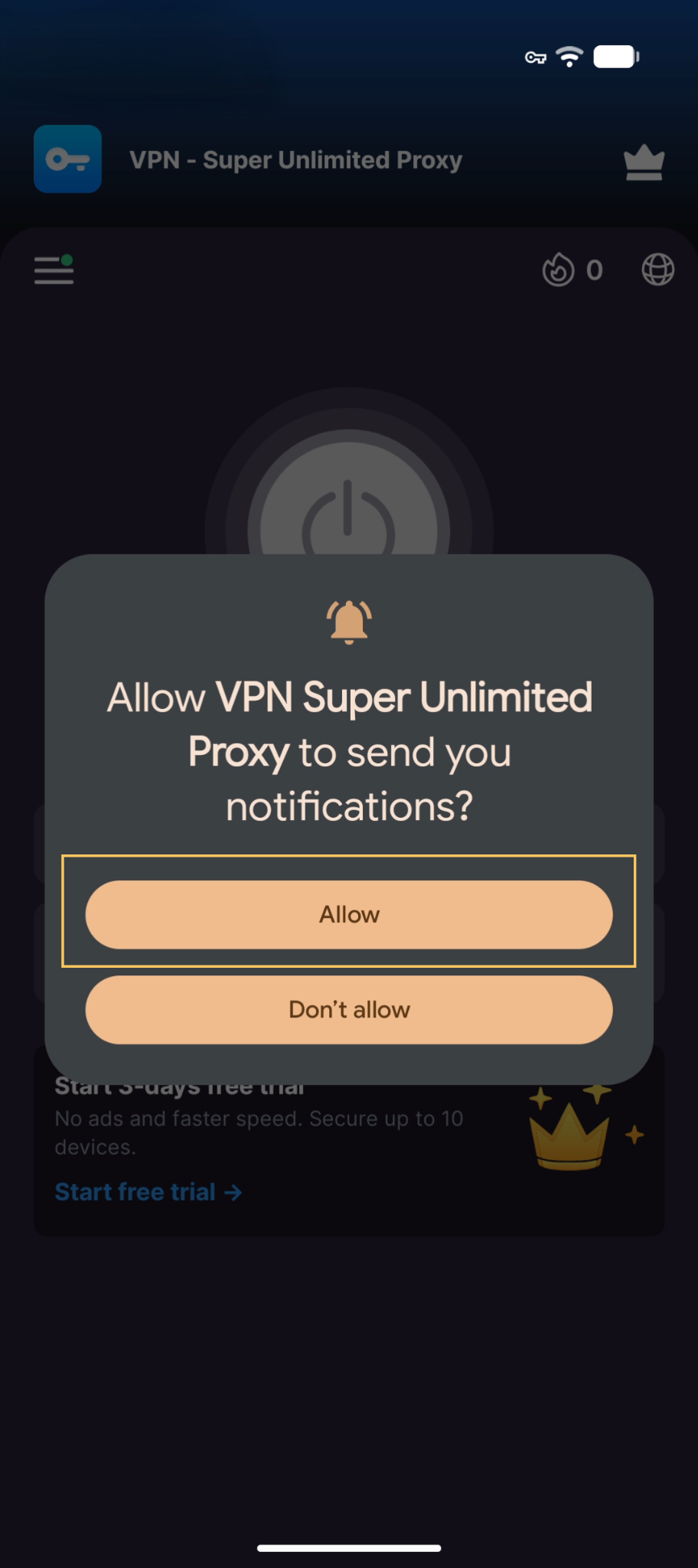
Next, you'll be asked to allow VPN Super to send you notifications. Tap Allow to proceed.
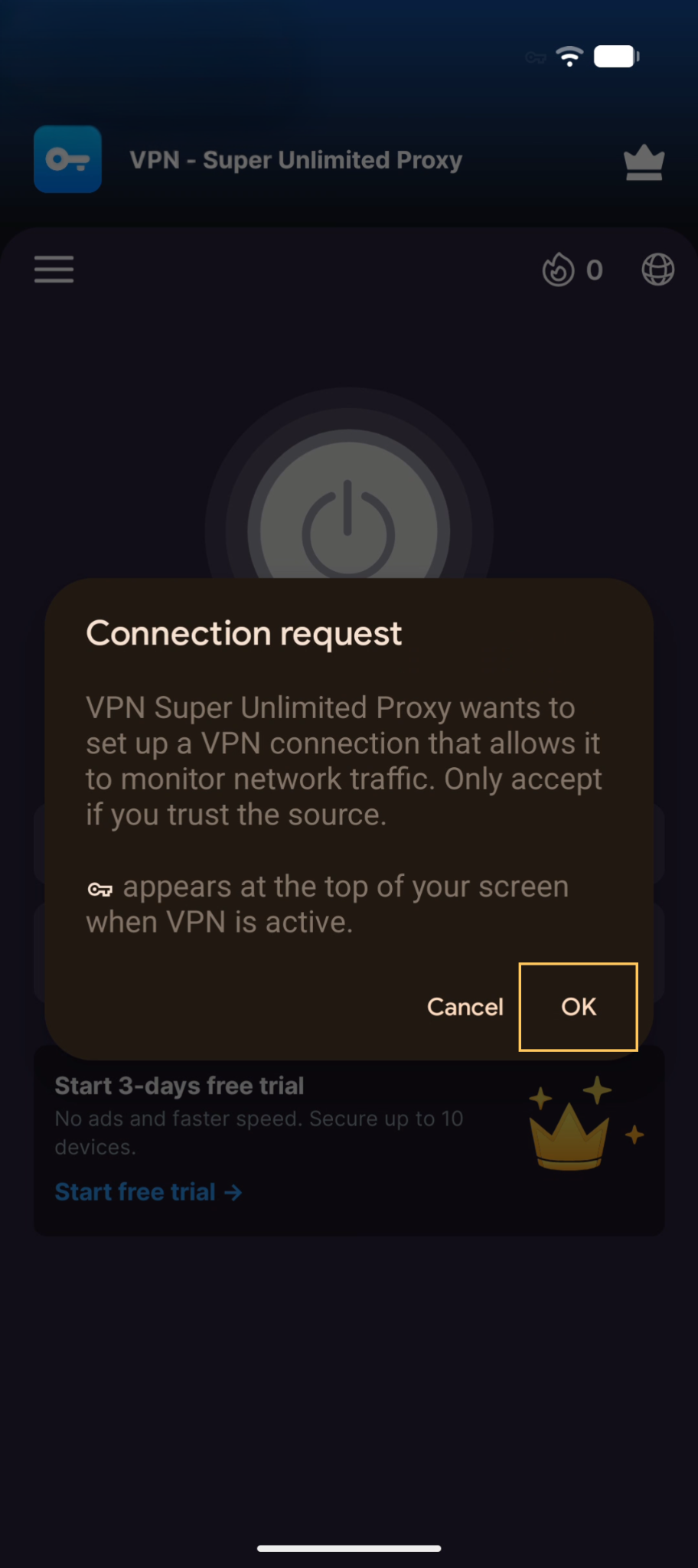
Finally, you'll see a connection request asking you to allow VPN Super to set up a VPN connection. You must allow VPN Super to add VPN configurations — without this, your device cannot establish the necessary VPN tunnel, and the VPN connection would not be functional.
VPN - Super Unlimited Proxy offers both a Premium and a free version.
For an ad-free experience and streaming-optimized servers, choose a Premium plan that works best for you. If you are an existing subscriber, tap on “Restore Purchase” to sign in.
To use the free version of VPN Super, tap the "X" on the top-right corner.
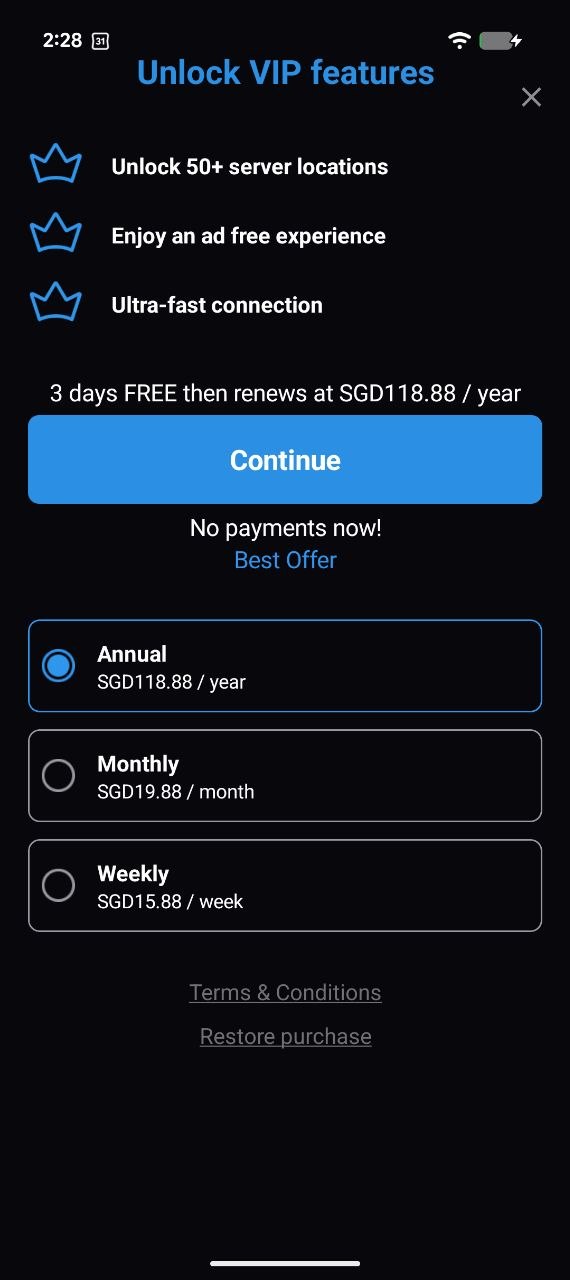
What’s the difference between the free and Premium versions?
If you’d like to try Premium benefits without committing to a subscription, you can enjoy a free 7-day trial with most of our subscription plans.
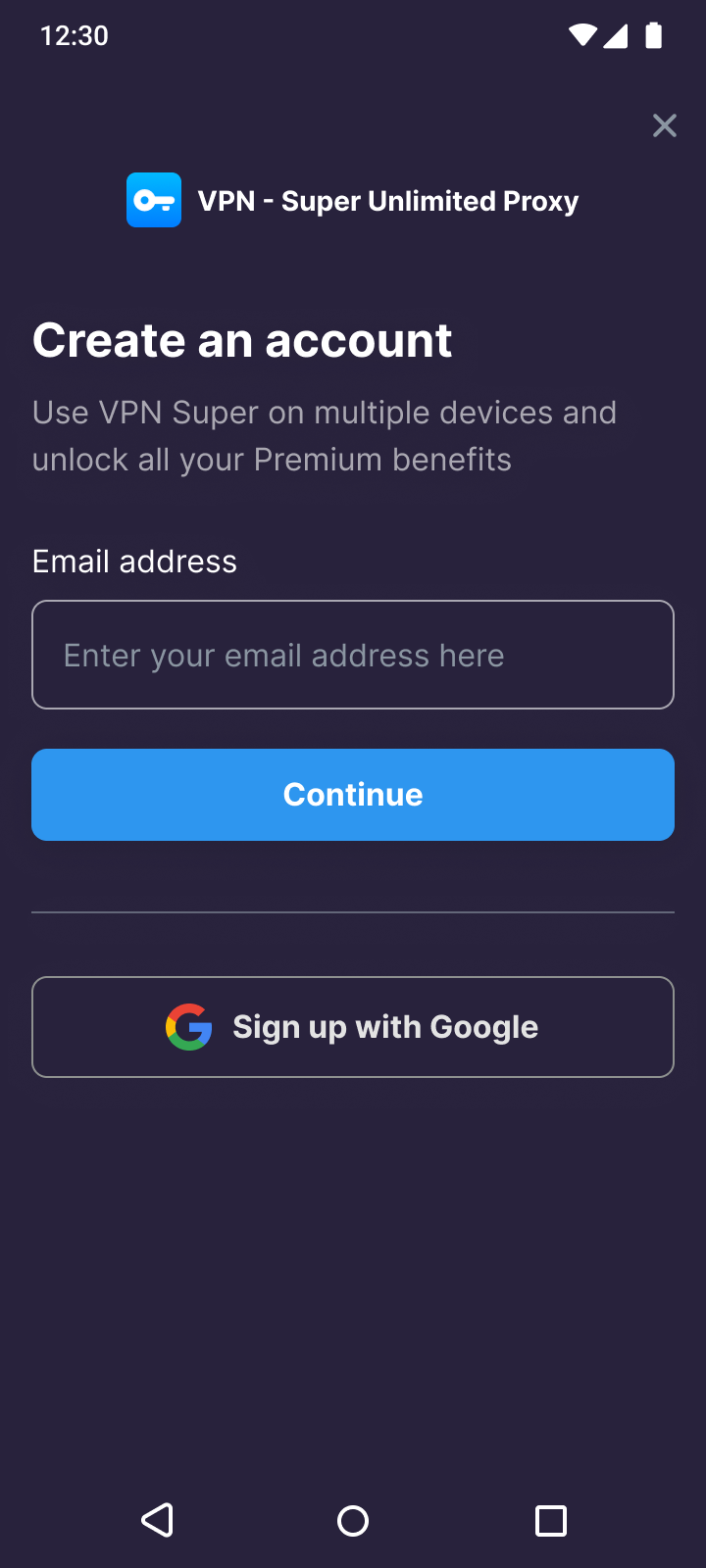
If you decide to purchase a Premium subscription, you will then be asked to create an account.
Already purchased a subscription before? Here's how to sign in from the home screen.
Tap the Hamburger Menu (☰) on the home screen.
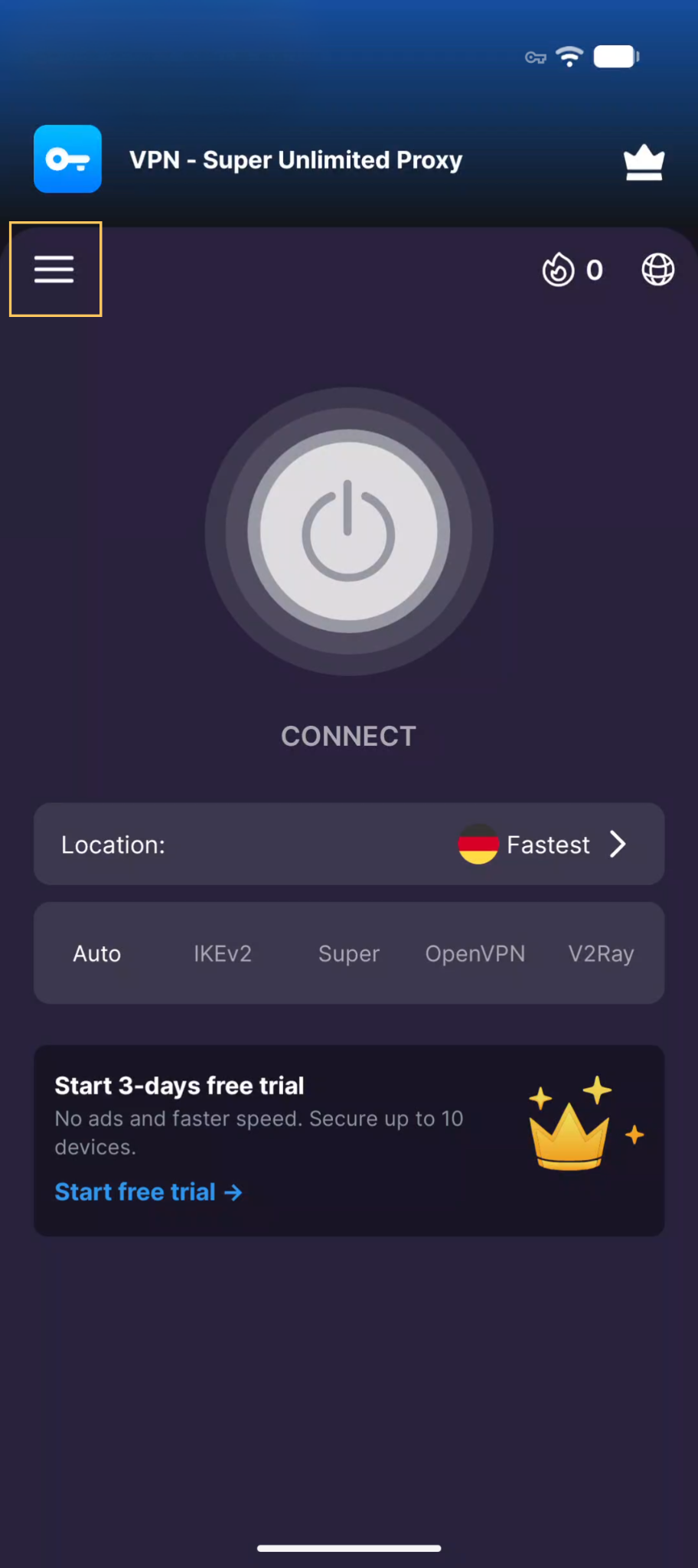
In the side menu, tap My account.
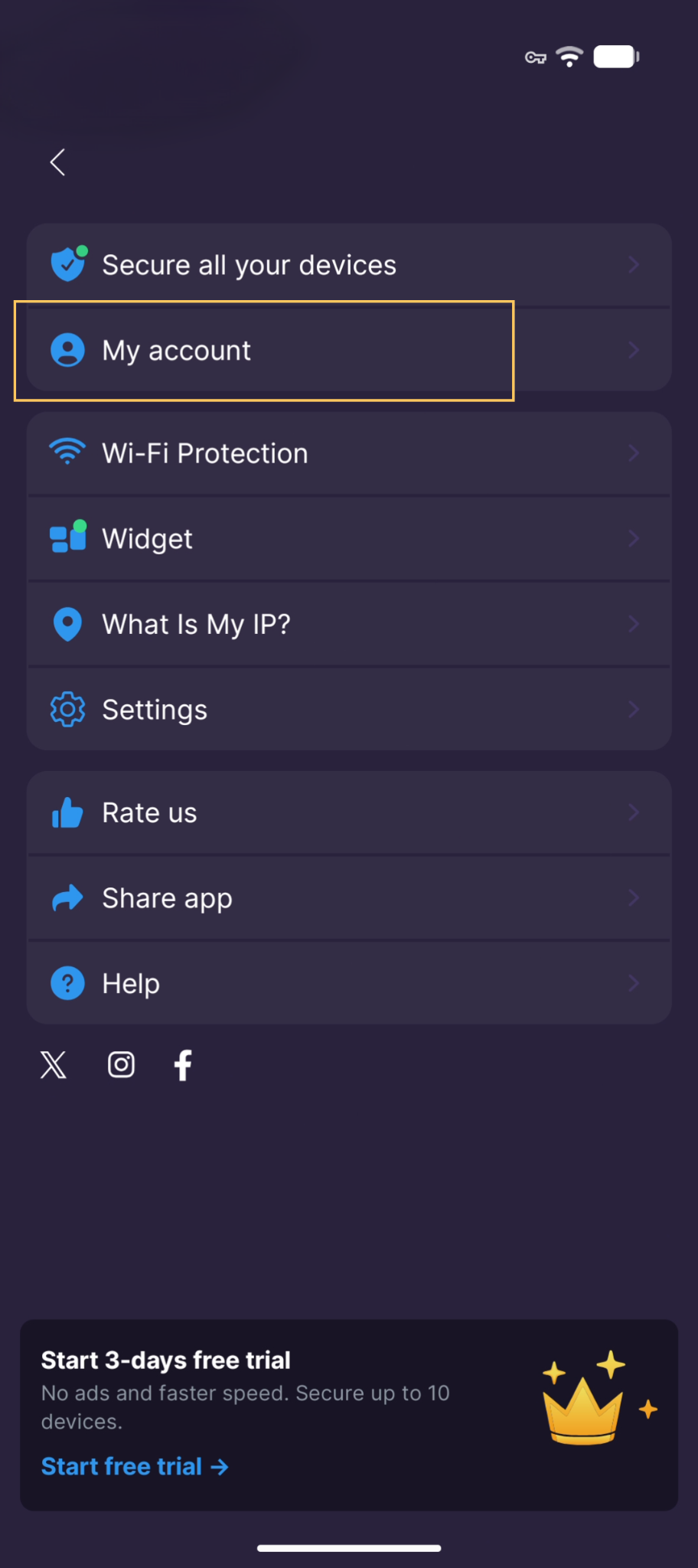
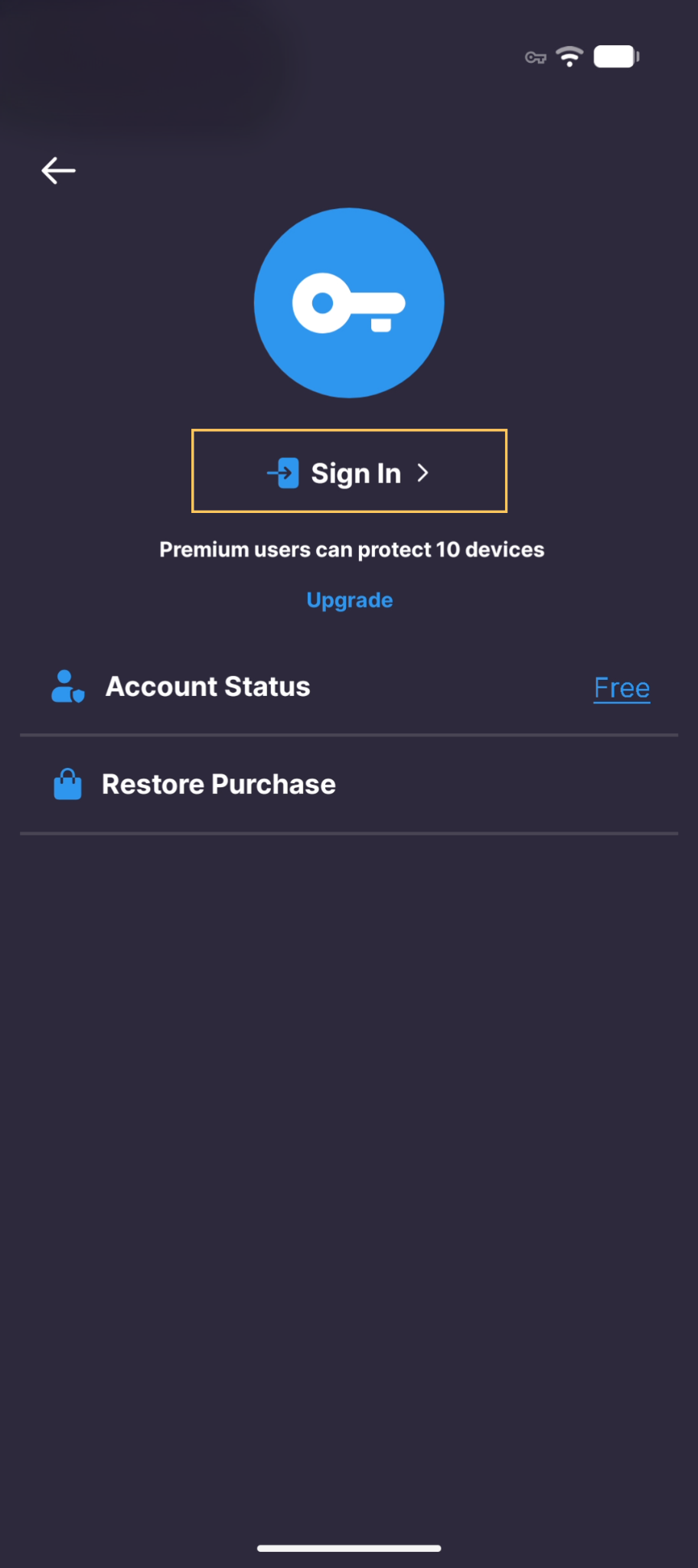
Enter your Premium subscription email and password to sign in.
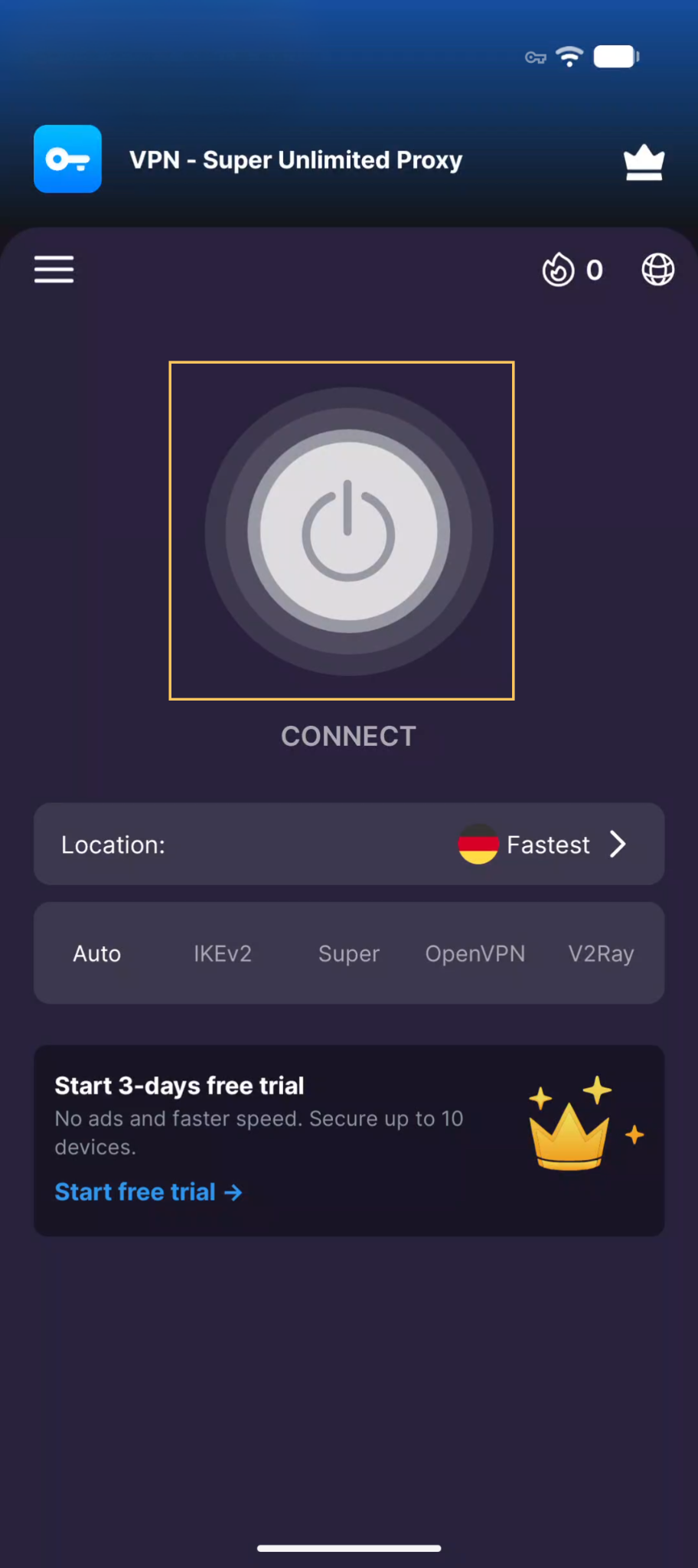
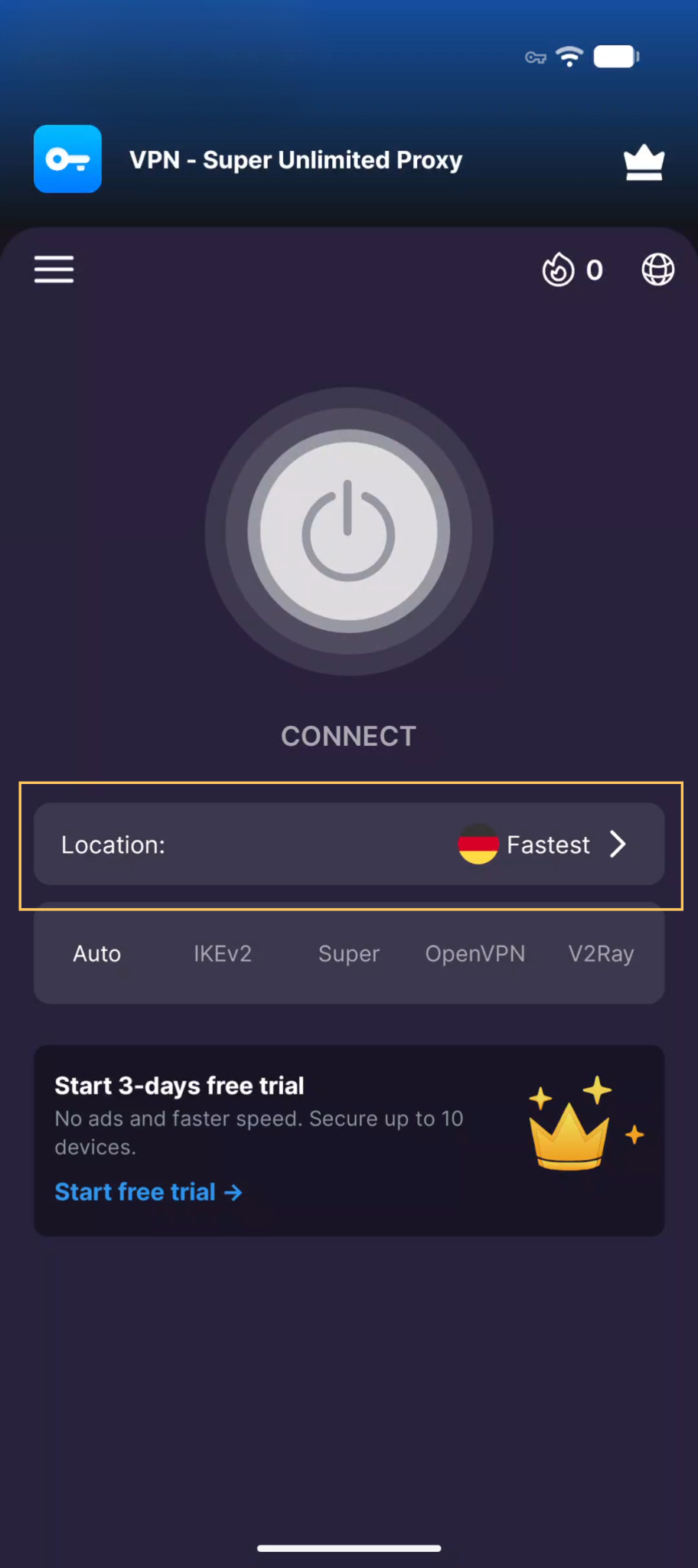
From the home screen, tap the Connect button to automatically connect to the fastest available server.
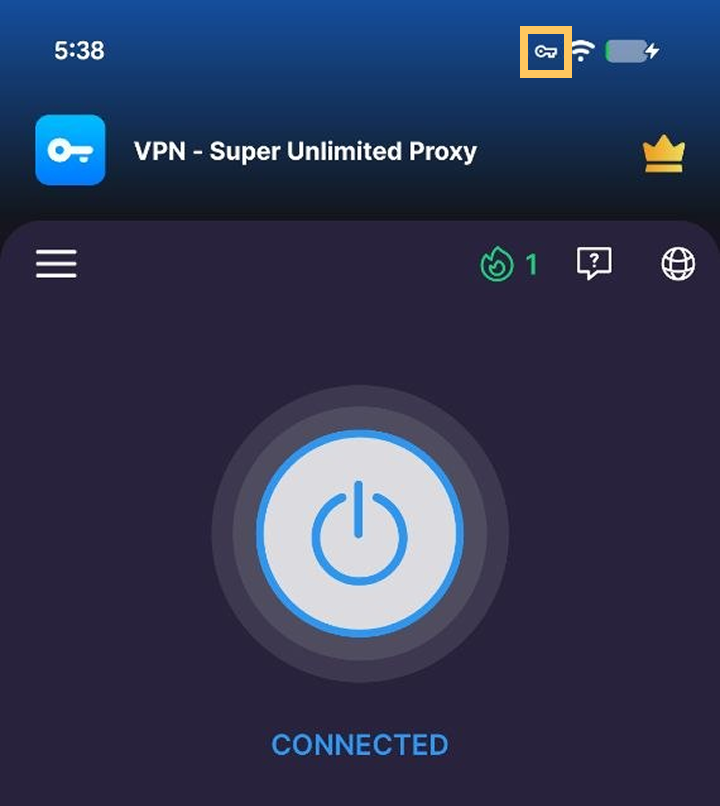
Once connected, you’ll see a VPN indicator in your Android status bar. Your internet connection is now encrypted and secure.
Want to connect to a specific country or region? Tap the server location selector to browse and choose from the available server list.
Is VPN Super free on Android? VPN Super offers both a free and a Premium version. The Premium version unlocks faster speeds, more server locations, and protection on 10 devices, including your PC or smart TV. You can subscribe directly in the app by tapping the crown icon.
Does VPN Super work on all Android devices? VPN Super is compatible with Android 5.0 and above, including phones and tablets.
Will VPN Super disconnect when I switch networks? VPN Super will automatically attempt to reconnect if your connection drops or you switch between Wi-Fi and mobile data.
Does deleting the app cancel my subscription? No. Deleting the VPN Super app from your Android device does not cancel your subscription. To cancel, you must go to Google Play Store → Subscriptions and cancel from there.
I’m having connection issues—what should I do? Try switching to a different server location, toggling the connection off and on, or restarting the app. For persistent issues, submit a request to our Support Team.
If you run into any issues during installation or setup, our support team is ready to help.
Submit a request and we’ll get back to you.


 VPN for Windows
 VPN for Android
 VPN for iOS
 VPN for MacOS
 Apple TV
 Android TV