
Note: We're gradually rolling out the Android TV app, so it may not be available to everyone yet. A Premium subscription is required to use VPN Super on your Android TV.
Looking to get started with VPN Super on your Android TV? This step-by-step guide walks you through everything you need to install VPN Super on any TV compatible with Android and get connected.
To ensure a smooth VPN Super Android TV setup, make sure you have:
Got a Premium subscription, but not a VPN Super account yet? Follow these steps to create an account, so signing in on your Android TV is easy.
On your Android TV, open the Play Store and search for "VPN - Super Unlimited Proxy". Select Install and wait for the download to complete.
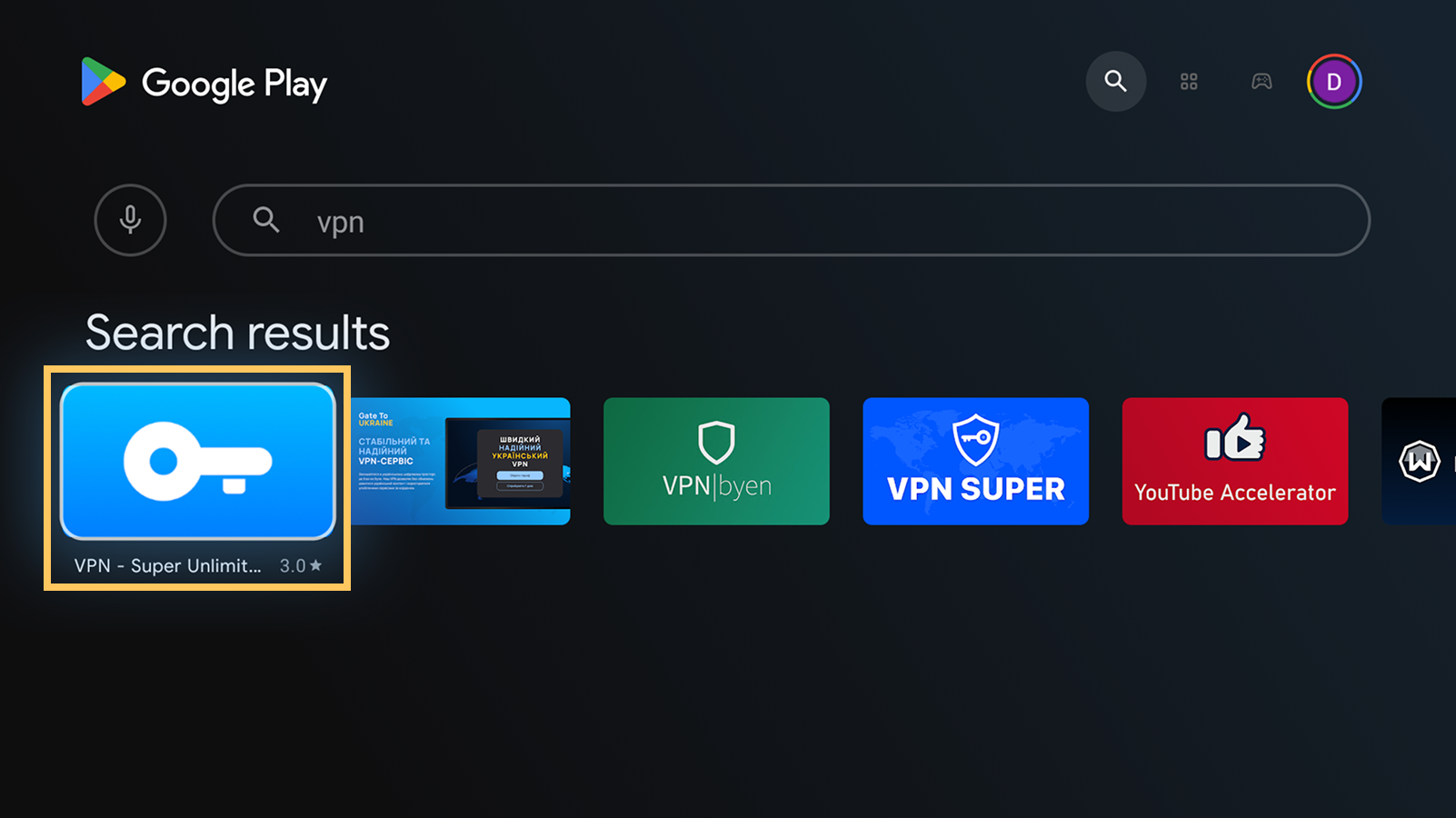
Once installed, open the app or find the VPN Super icon on your home screen to launch the app.
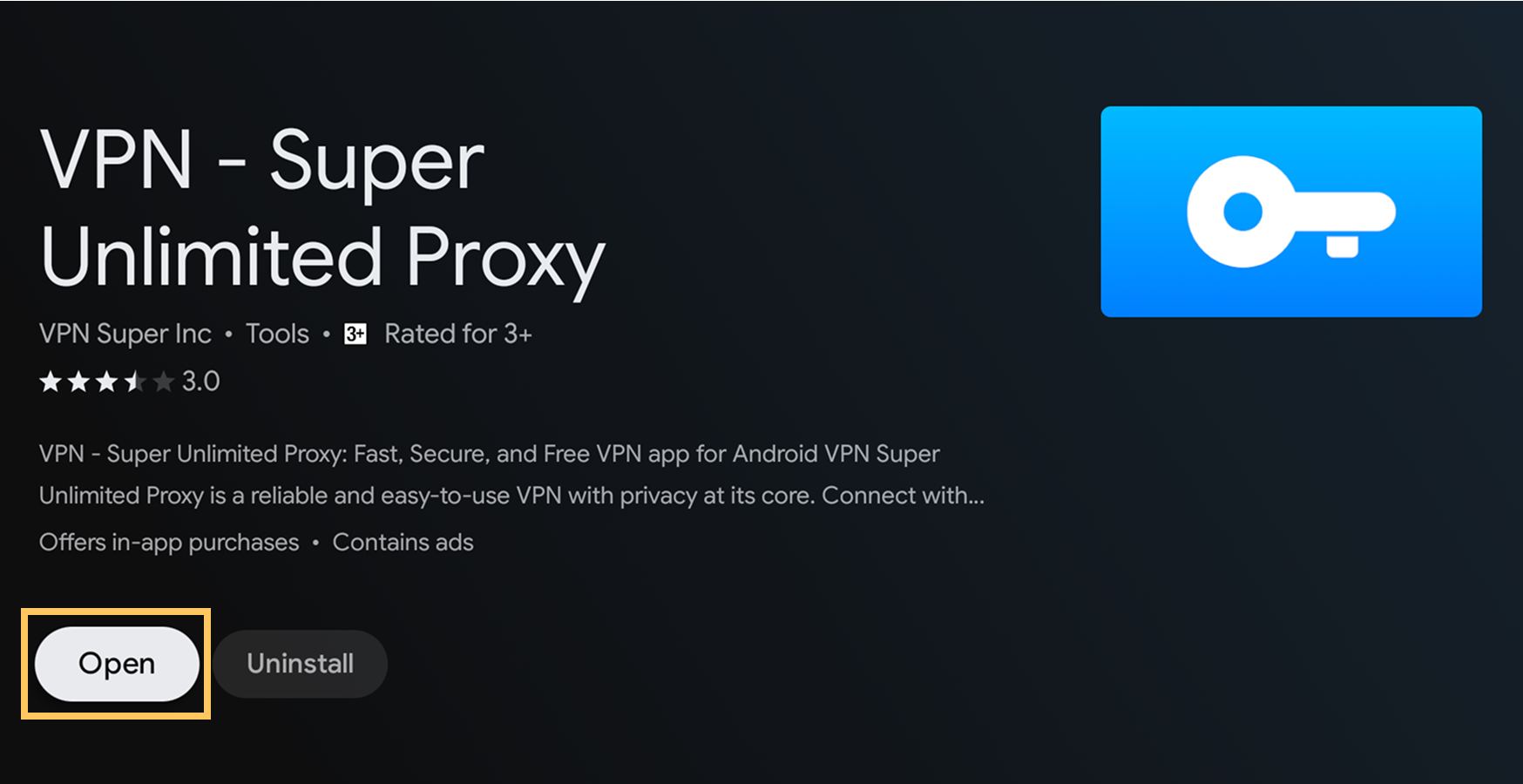
A Premium subscription is required to use VPN Super on Android-compatible TVs. Got a Premium subscription, but not a VPN Super account yet? Follow these steps to create an account, so signing in on your Android TV is easy.
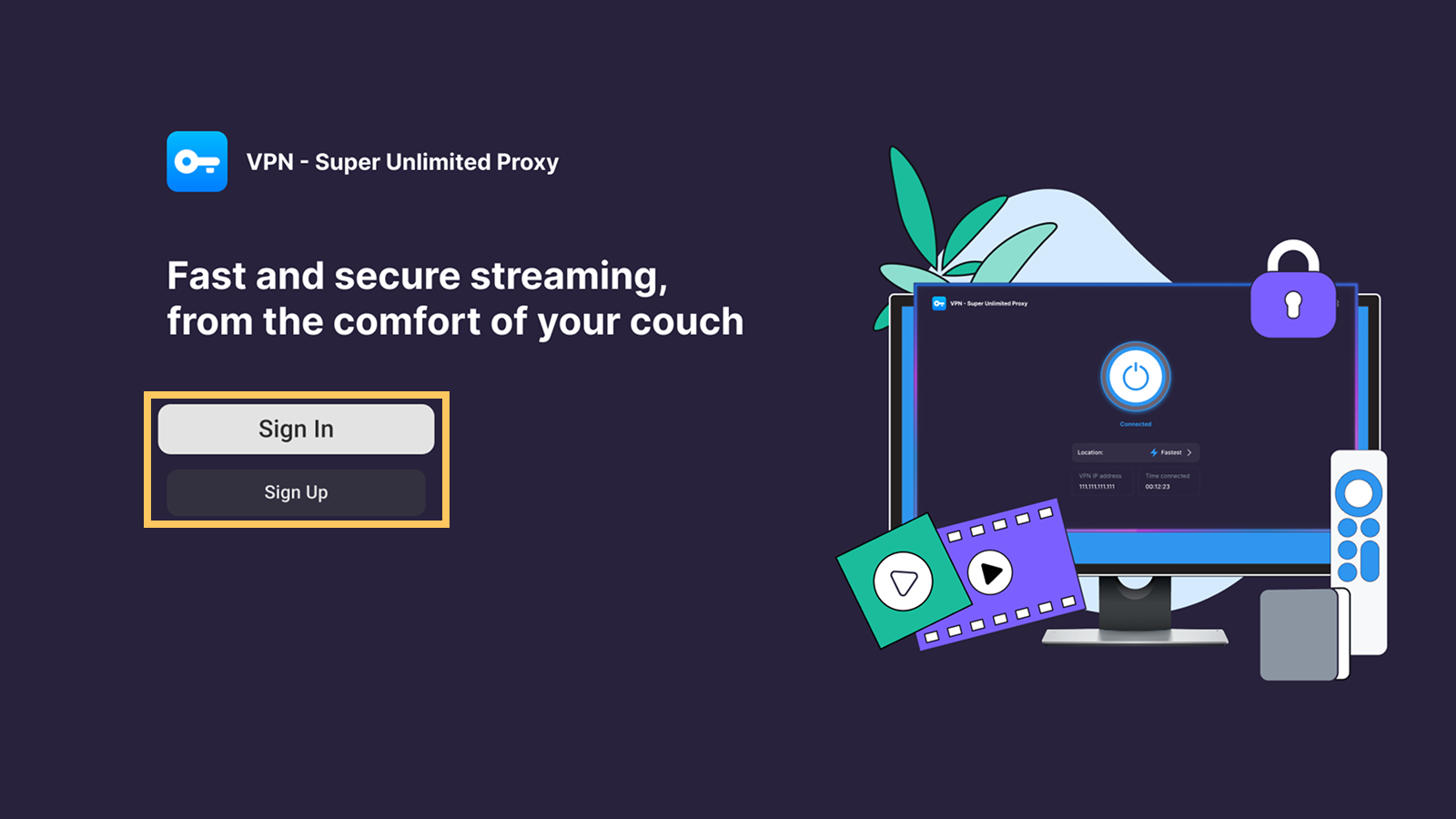
If you already have a Premium subscription and an account, select "Sign In". If you don't have a Premium subscription, select "Sign Up" and follow the on-screen instructions.
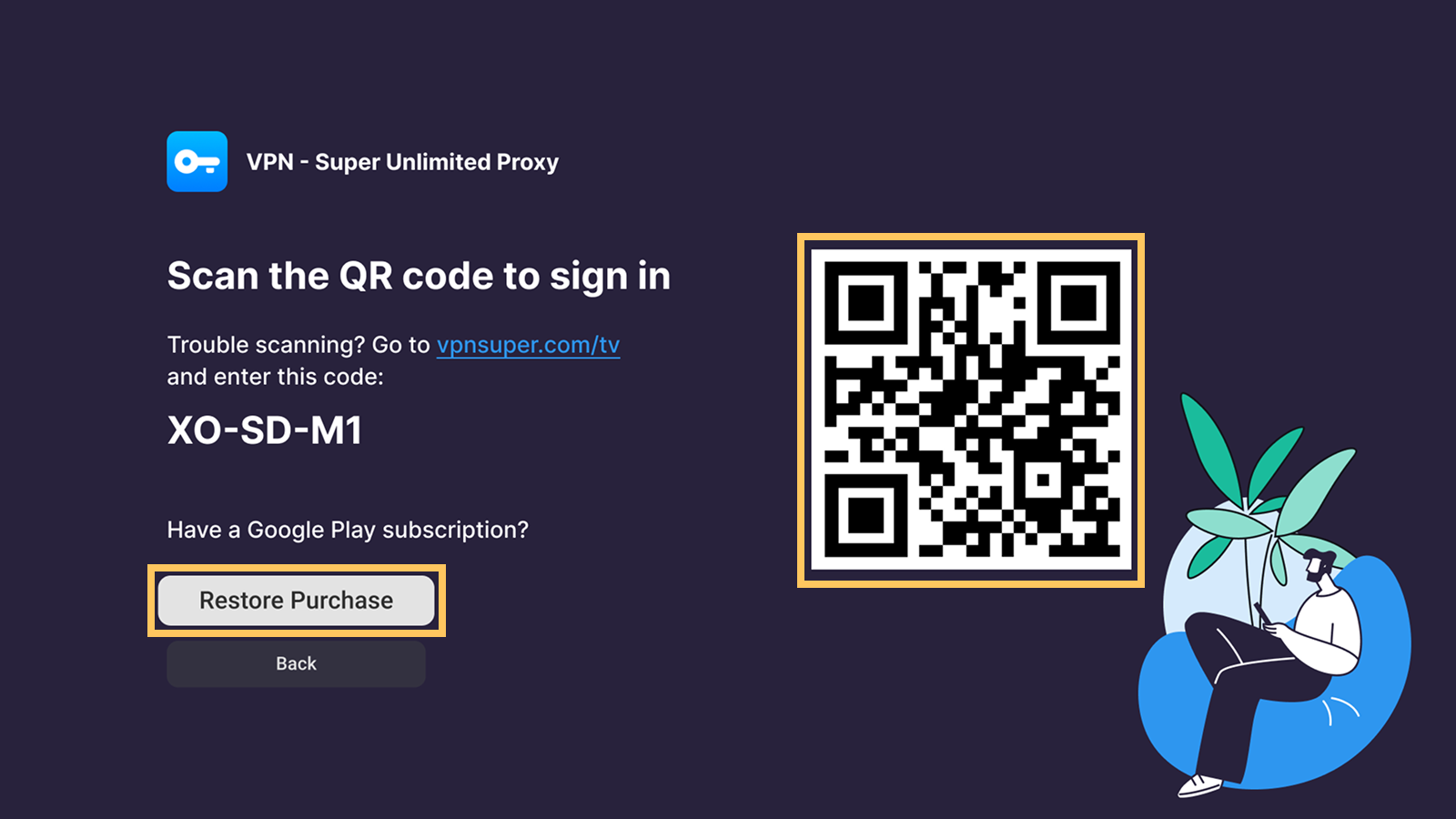
After selecting "Sign In", you'll have the option to scan the QR code or select "Restore Purchase". If you've already created a VPN Super account, scan the QR code to sign in. If you purchased your Premium subscription on the VPN Super app for Android, select "Restore Purchase" instead.
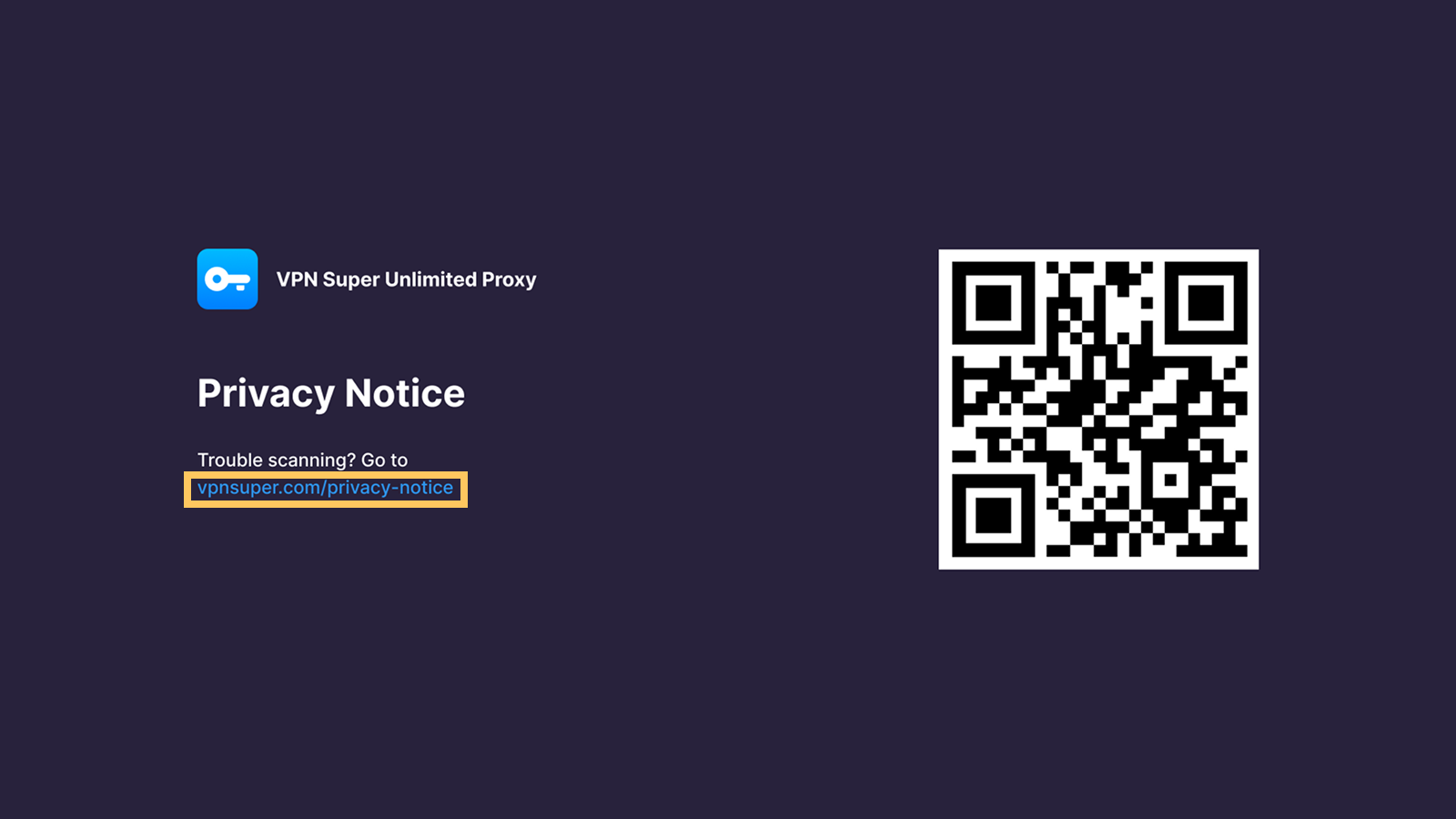
You will see a Privacy Notice. Scan the QR code or go to the link shown on screen to review it.
Your privacy is our priority, which is why we only collect limited device, diagnostic, and account information to provide and improve our service. We don't monitor your VPN browsing activity or what you do online.
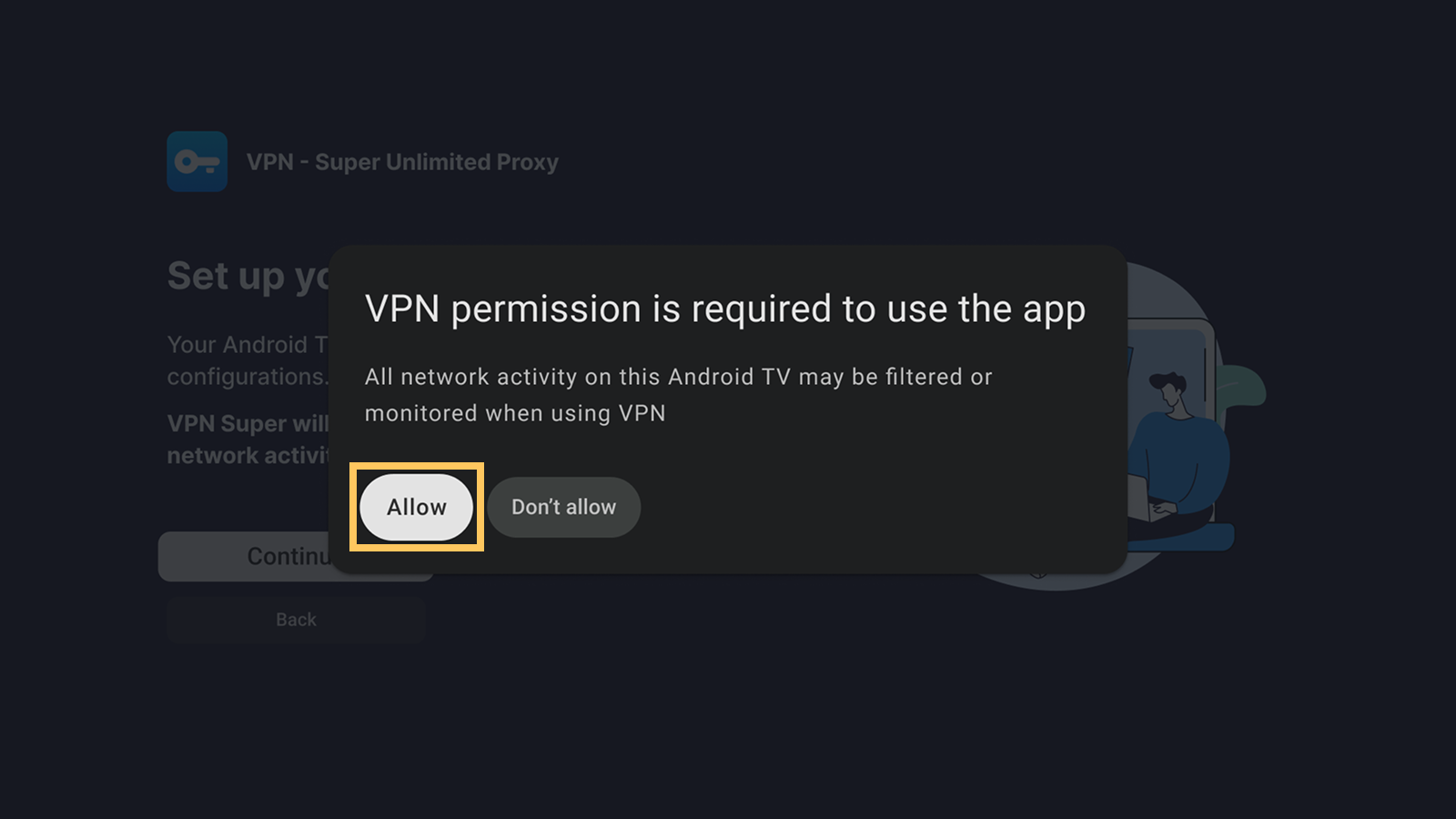
Next, your Android TV will ask for permission to add VPN configurations. Without this, your device cannot establish the necessary VPN tunnel, and the VPN connection would not be functional.
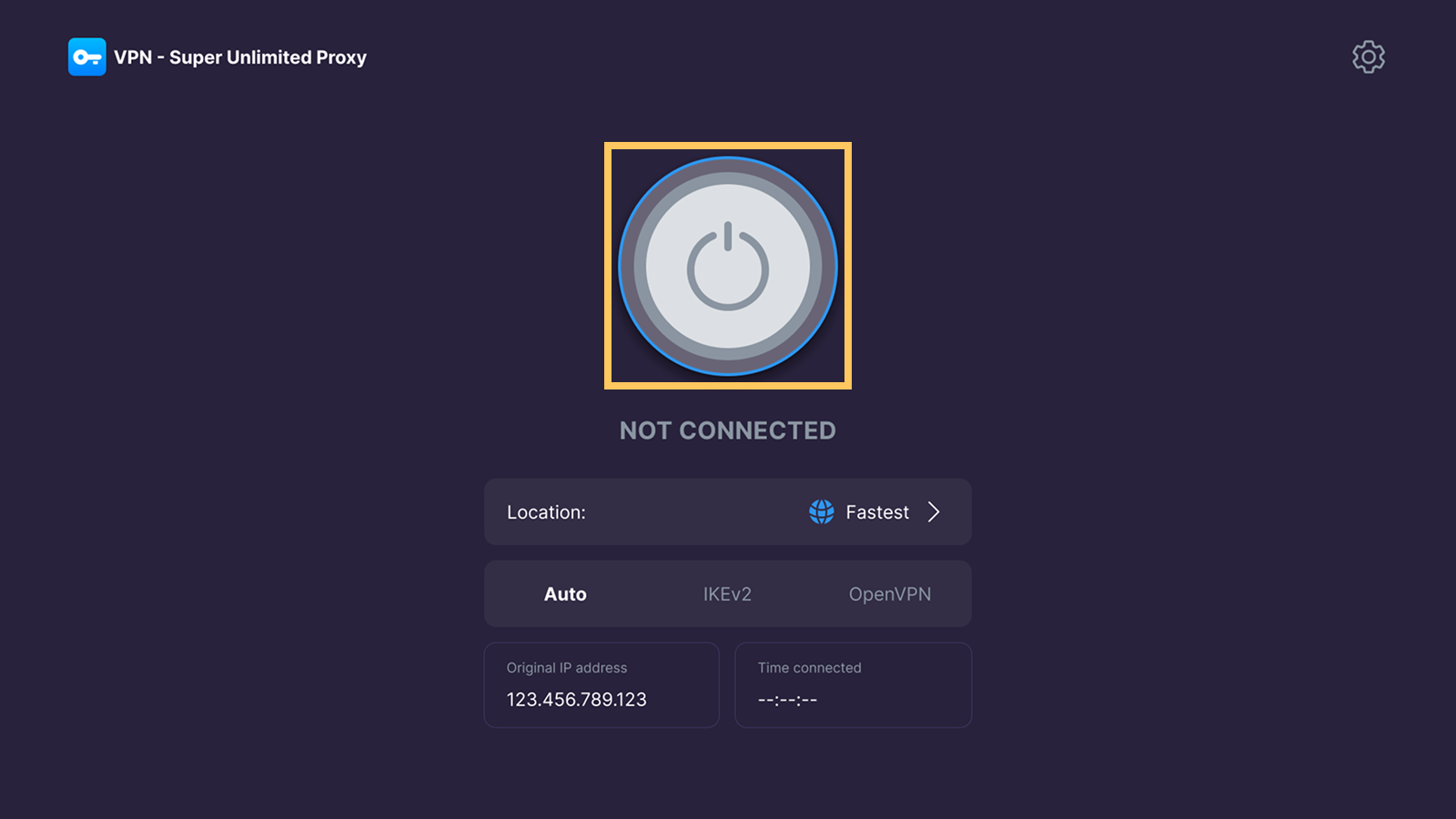
Once you complete onboarding, you'll be redirected to the home screen. Select the "Connect" button to automatically connect to the fastest available location.
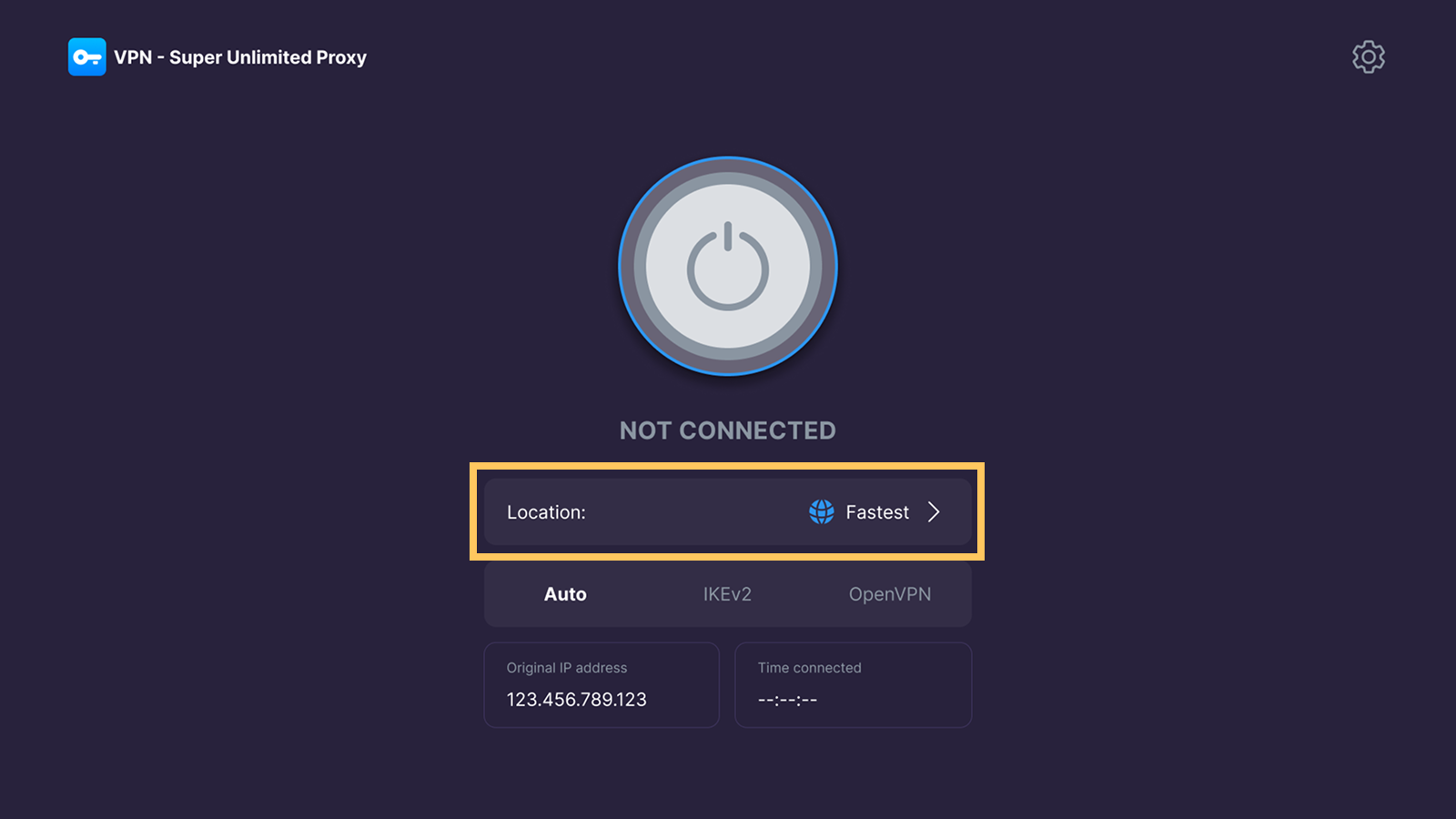
Want to connect to a specific country or region? Select "Location: Fastest" to browse and choose from the available list of locations, or read our article on changing server locations on Android TV.
A Premium subscription is required to use VPN Super on Android TV. The Premium version unlocks faster speeds, more server locations, and protection on 10 devices, including your PC or Apple/Android TV. You can view our latest plans and pricing here.
VPN Super is compatible with devices running Android TV 8.0 or later, such as Sony TVs, Google TV streamer boxes, and Nvidia Shield devices that include the Google Play Store. Other devices, such as Samsung and LG TVs, FireTV, and Roku, don't run Android TV and are not compatible.
The VPN Super app for Android TV offers high-speed, streaming-optimized servers in 35+ locations, allowing you to stream TV shows and movies from anywhere without interruptions. You can also use the Split Tunneling feature to select apps you want to exclude from the VPN. Do note that a Premium subscription is required to use VPN Super on your Android TV.
A VPN can help change the virtual location associated with your connection, which may be useful when streaming while traveling or when services offer region-specific catalogs. Access depends on each streaming app's rules, licensing agreements, account region, and detection systems, so VPN Super should not be positioned as a guarantee for any specific library.
To use VPN Super with streaming services like Netflix and Disney+, you'll need a Premium subscription with VPN Super, as well as an account or subscription with the streaming services.
If a streaming app does not load as expected, try connecting to another location, restarting the app, checking your account region, or submitting a request to our Support Team.
I'm having connection issues—what should I do? Try switching to a different server location, setting your VPN protocol to "Auto", disconnecting and reconnecting to VPN, or restarting the app. If you're still encountering issues, submit a request to our Support team.
If you run into any issues during installation or setup, our Support team is ready to help.
Submit a request and we'll get back to you.

 VPN for Windows
 VPN for Android
 VPN for iOS
 VPN for MacOS
 Apple TV
 Android TV