See what Kill Switch and local network access do in VPN Super for Windows, what stays blocked while you're connected, and how to fix local devices.
Connected to VPN Super on Windows, and now a printer, network drive, smart TV, or game isn't working? The local network access setting decides whether your computer can reach devices on your network while you're connected. Kill Switch is a separate setting that blocks your internet if the VPN drops. This guide explains what each one does, what stays blocked to keep your real IP address private, and what to try if something on your network stops working.
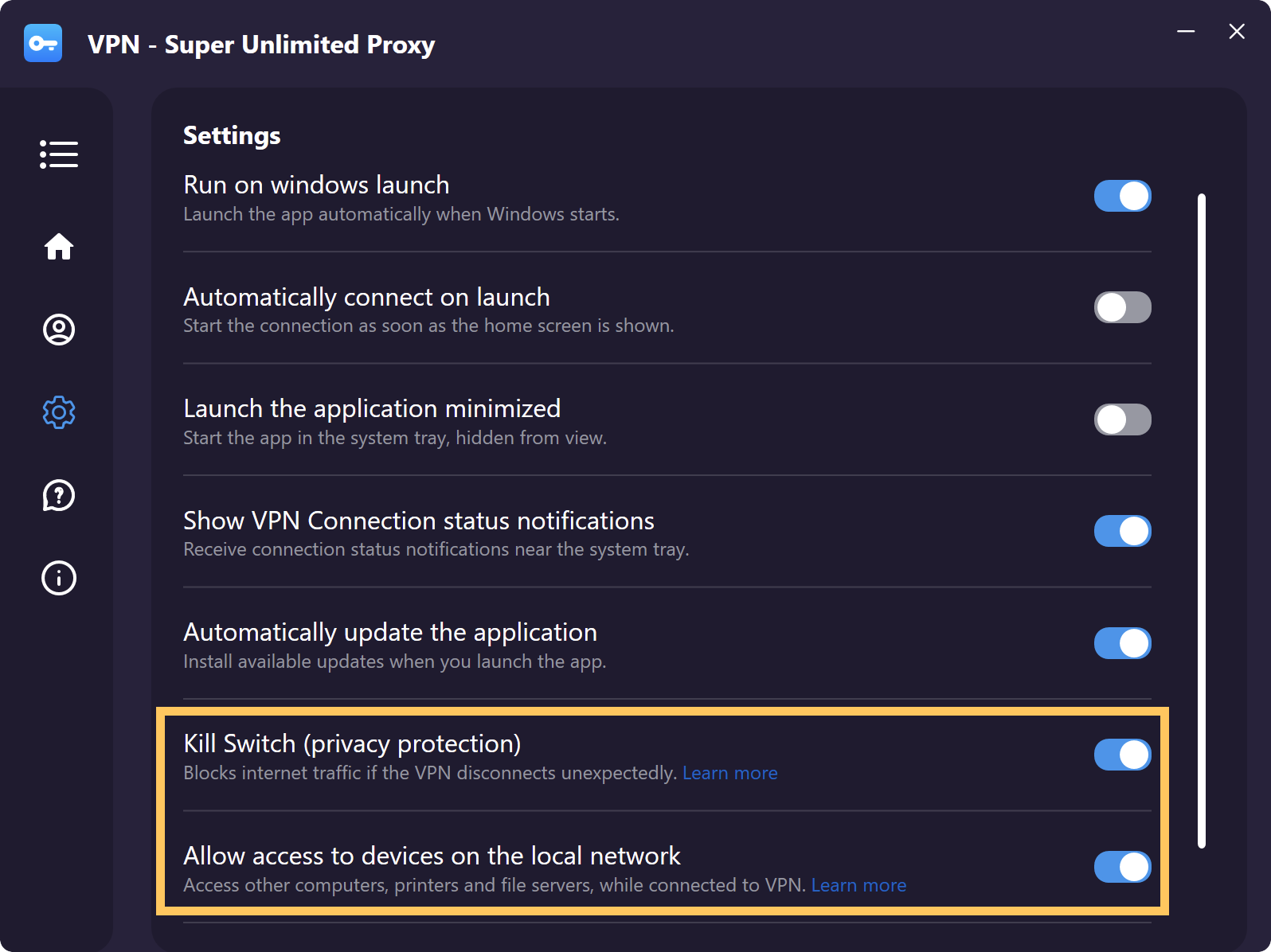
Kill Switch blocks all internet traffic if your VPN connection drops unexpectedly, so your real IP address and the sites you visit aren't exposed. Your internet comes back once VPN Super reconnects, or when you select Unblock internet. It also blocks while VPN Super is connecting and while you switch locations, so your real IP address stays hidden until the VPN is up. If you disconnect yourself, Kill Switch doesn't block anything. To see whether it's on, check the toggle in Settings.
While Kill Switch is on, anything that doesn't go through the VPN is blocked, even when your connection is working. Your local devices are the exception when local network access is on.
Wi-Fi sign-in pages in hotels, airports, and cafes won't load while Kill Switch is on and VPN Super is connecting. To get online, disconnect, sign in to the Wi-Fi in your browser, then connect again.
If your VPN connection drops, the app shows Kill Switch active. Internet access will resume once the VPN reconnects. In most cases, VPN Super reconnects on its own and your internet comes back without you doing anything.
If VPN Super can't reconnect, you'll see Server Connection Failed. Choose what to do next:
Kill Switch only works while the VPN Super app is open. If you quit the app (on Windows, right-click the VPN Super icon in the system tray and select Exit), VPN Super disconnects and your internet works normally again. Closing the window doesn't quit the app.
If you see Connection Failed with a message about a problem activating the Kill Switch, VPN Super couldn't turn on Kill Switch, so it stopped the connection to keep you protected. Select Try again, and contact Support if it keeps happening.
Allow access to devices on the local network is on by default. While it's on, you can keep using printers, network drives, other computers, and casting to devices like Chromecast or Apple TV while you're connected. Whether or not Kill Switch is on, Windows can't share updates with other PCs on your network, and some apps can't open ports on your router. A few other things stay blocked whatever your settings (see below).
Turn it off when you're on a network you don't trust, like public Wi-Fi. Other devices on that network then can't reach your computer while you're connected.
Whatever your settings, VPN Super blocks a few things while you're connected, because they could expose your real IP address or the sites you visit:
Everything works as usual again when you disconnect, or when you select Unblock internet.
These steps might help:
For more details, see: How to use VPN Super's Kill Switch
Still need help?
Submit a request and we'll help you sort it out.
Was this article helpful?
Thank you! Your feedback means a lot to us.
We will work on improving this article.