VPN Super works with Siri Shortcuts on iOS, so you can connect, disconnect, or open your server list with your voice or a single tap.
VPN Super works with Siri Shortcuts on iOS, so you can connect, disconnect, or open your server list with your voice or a single tap.
Note: Siri Shortcuts requires iOS 16 or later, and is gradually being rolled out to users.
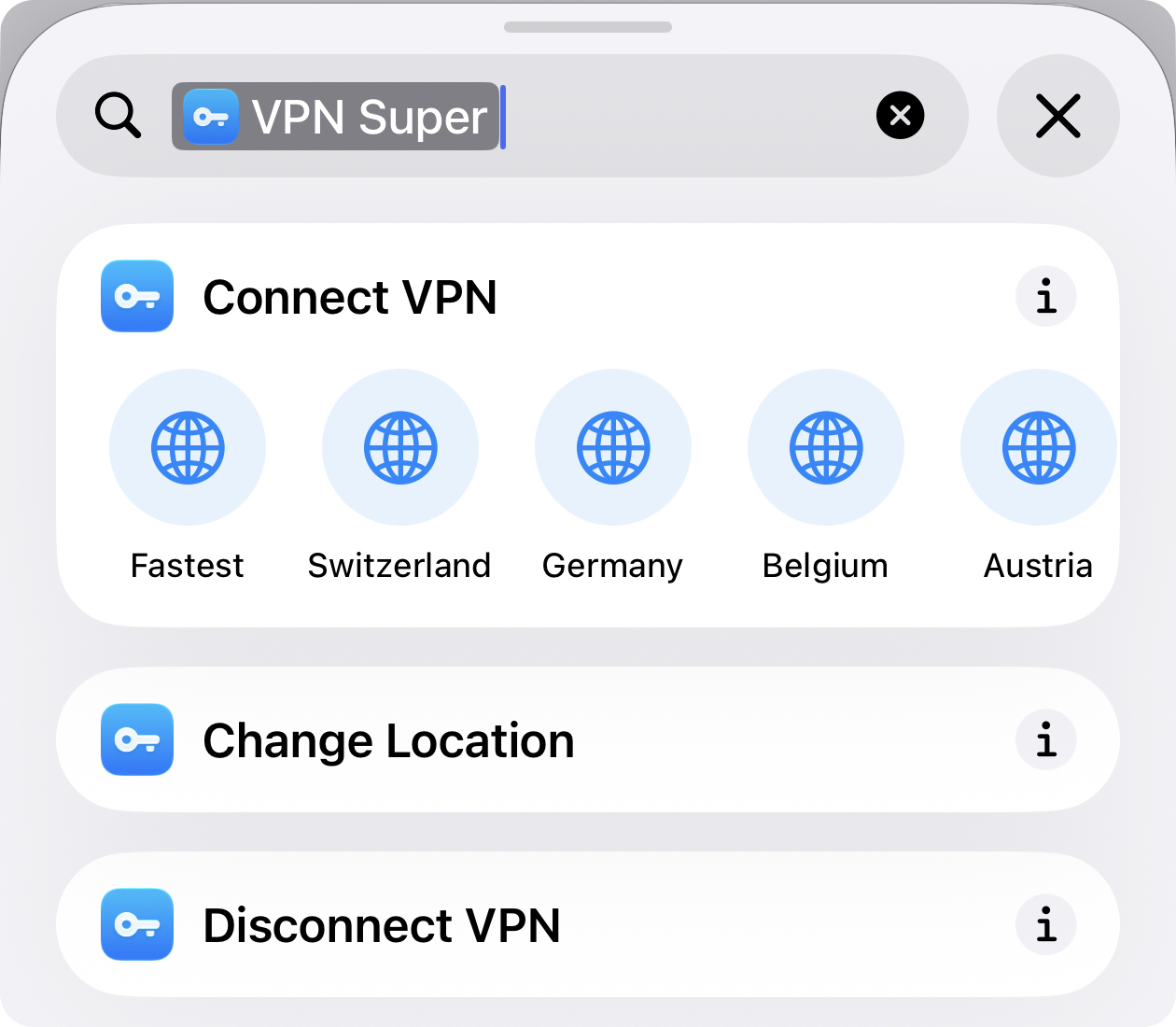
Siri Shortcuts is a built-in iOS feature that lets you trigger actions with a voice command, Home Screen icon, or an automation. We’ve added three shortcuts you can use with VPN Super: Connect VPN, Disconnect VPN, and Change Location. In the Shortcuts app, these appear as App Shortcuts.
There is a one-time setup to control VPN Super with Siri—you’ll be prompted when you give your first voice command related to VPN Super.
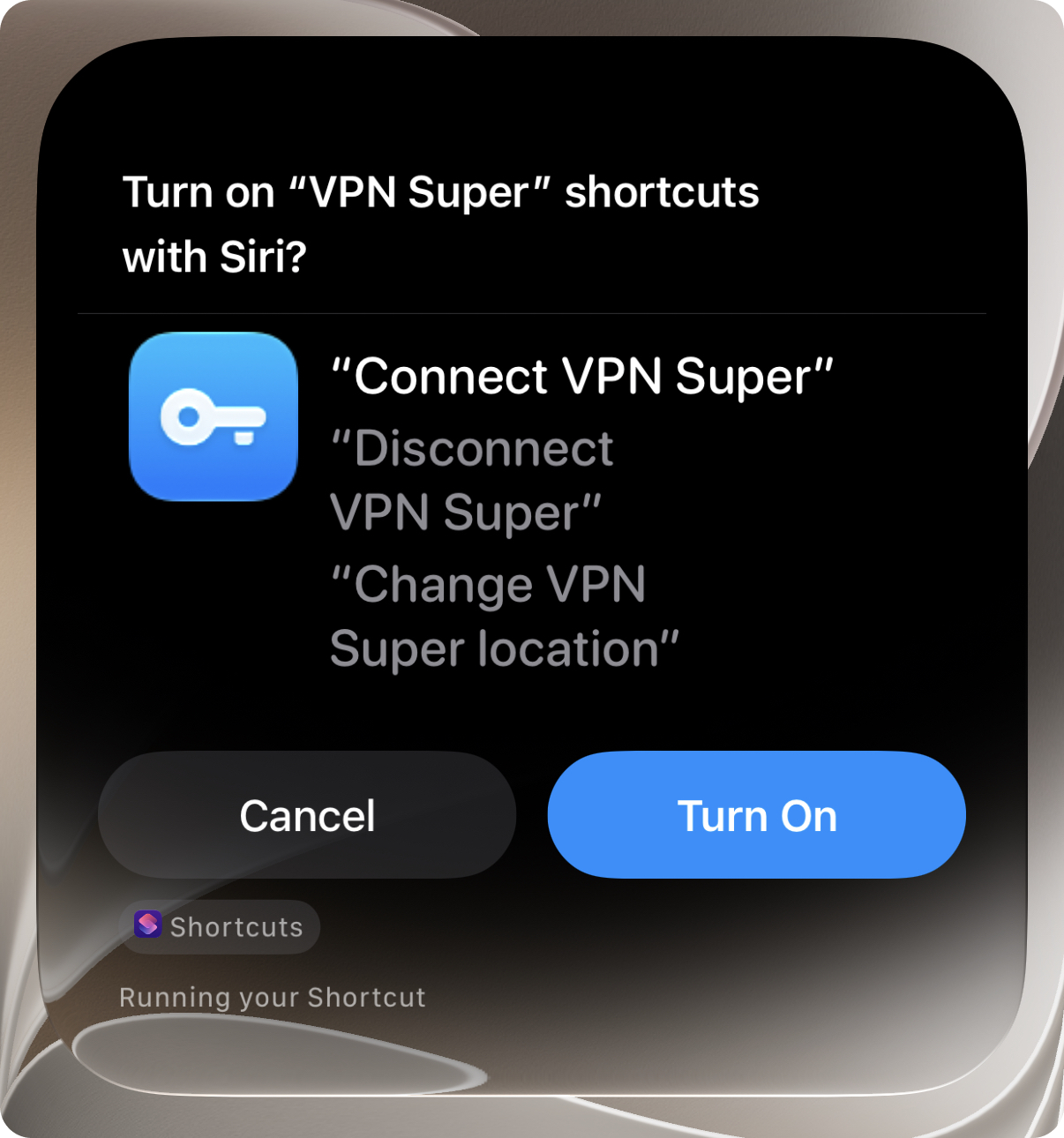
This shortcut helps you connect to your last-used location, the fastest available one, or a specific location (if it is available in the app) and opens the VPN Super app to confirm.
Try saying:
Siri will say: "Opening VPN Super to connect."
If you're on the free version, you may see a short ad while VPN Super connects. Premium subscribers connect right away.
This shortcut disconnects you without opening the VPN Super app.
Try saying:
Siri will say: "Disconnected from VPN Super."
If the VPN Super app hasn't been opened recently, Siri will say: "VPN Super isn't ready yet. Open the app and try again." Open VPN Super once, then try the shortcut again.
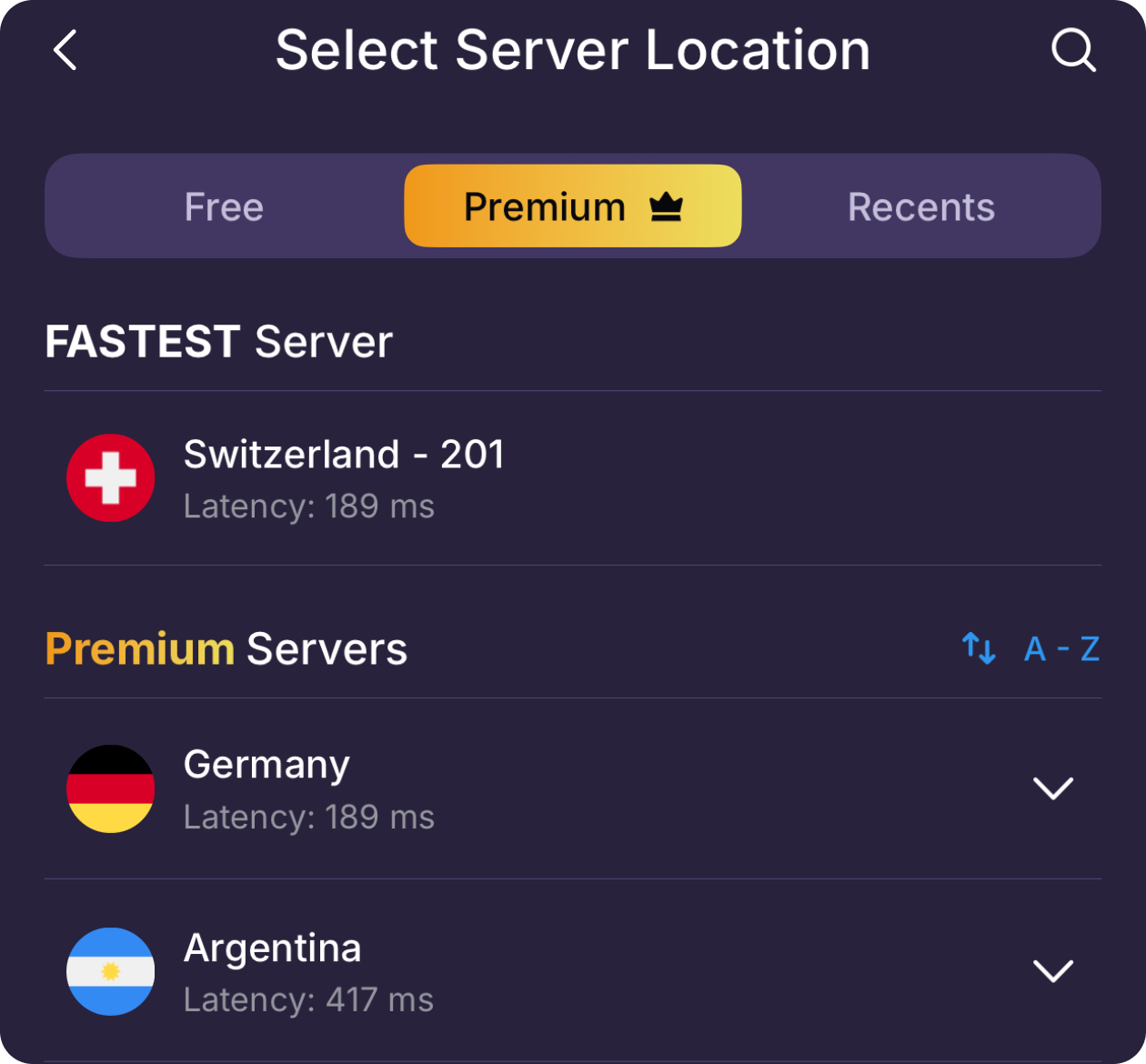
This shortcut opens the VPN Super app straight to your list of server locations, so you can pick a new one. This doesn't change your connection by itself—you still need to choose the location once the list is open to connect to it.
Try saying:
Siri will say: "Opening locations."
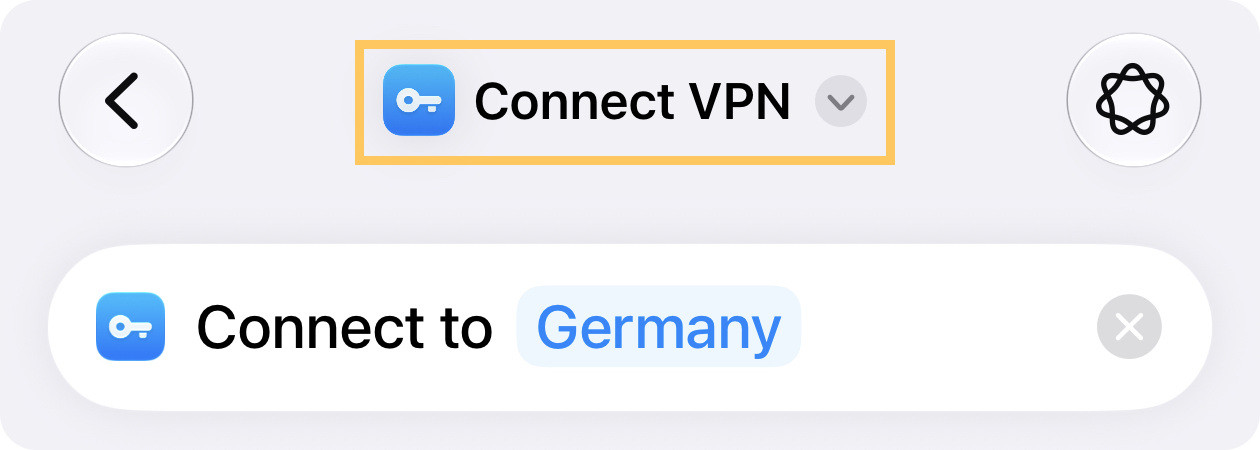
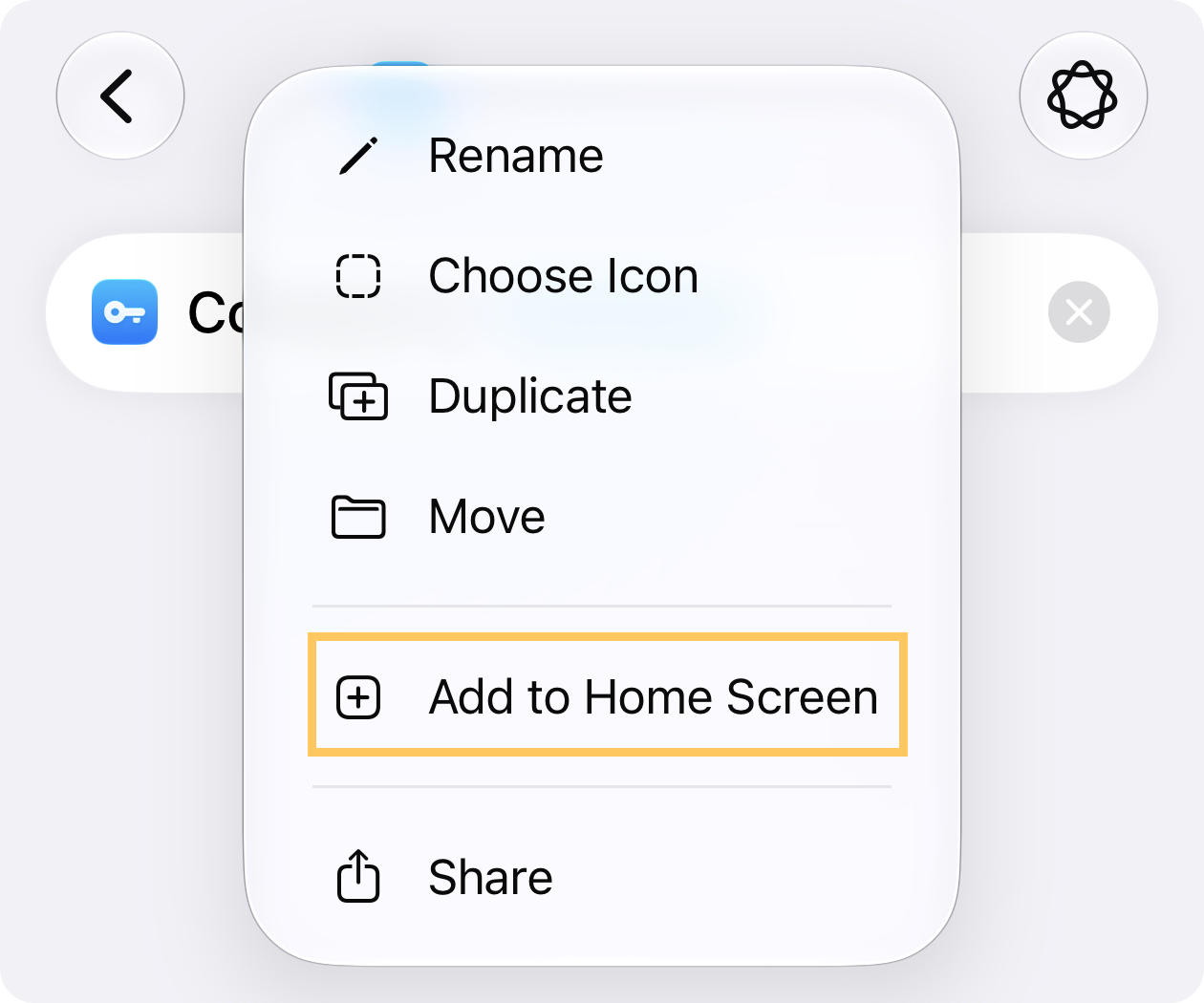
If you'd like a Home Screen icon, widget, or to build these into a longer automation:
Do I need to say "VPN Super" exactly? Yes. Say "VPN Super" in any of the phrases above so Siri opens the right app.
Why isn't Siri recognizing my VPN Super shortcuts? Make sure Siri's language is set to English in Settings → Siri (or Apple Intelligence & Siri). The shortcut phrases are in English, so a different Siri language won't match them.
Why did Siri say VPN Super isn't ready? This happens if VPN Super hasn't been opened yet on your device. Open the app once, then it should work as expected going forward.
Does Change Location actually switch my server? No. It opens the app to your location list so you can choose—your connection doesn't change until you tap a new location.
Can I use these shortcuts in Automations? Yes. Any of the three actions can be added to a personal automation in the Shortcuts app, such as connecting automatically when you leave home or join a specific Wi-Fi network.
Does this work on iPad? Siri Shortcuts is a system-wide iOS/iPadOS feature, so these shortcuts work the same way on iPad.
What's the minimum iOS version required? iOS 16 or later.
If you have any issues, submit a request and we'll help you sort it out.
Was this article helpful?
Thank you! Your feedback means a lot to us.
We will work on improving this article.