

Your iPhone tracks two separate kinds of location, and changing one does nothing to the other. Your IP address is what most websites and apps check, and a VPN changes it in a few seconds. Your GPS location comes from satellites, cell towers, and nearby Wi-Fi networks, and it's what Maps, Find My, and rideshare apps read instead. A VPN doesn't touch it.
Quick answer: a VPN changes your IP address, not your GPS. If the app you care about checks IP (most websites, streaming catalogs, ad networks), a VPN is the right tool. If it checks GPS (Maps, Find My, Uber, location-based games), you need Location Services permissions, Xcode's simulator, or a spoofing tool instead, each with its own trade-offs covered below.
That gap is why most guides on this topic leave people more confused, not less. They list four or five methods in a row without saying which one actually does what you need. Here's a straight answer first, then the details.
Which method do you actually need?
Start with what you're trying to do, not with the list of tools.
- Browse privately on hotel or airport Wi-Fi: use a VPN. It encrypts your traffic and changes the IP address sites see, so anyone else on that network sees nothing useful.
- Get your home country's App Store catalog or subscriptions after moving abroad: change your Apple ID's country or region. That's a billing setting tied to your account, not your device's location.
- See how an app looks or behaves in another country before spending real money on it: use Xcode's GPS simulator on a Mac. It's Apple's own tool, and it doesn't touch your phone's actual settings or need a jailbreak.
- Stop one specific app, such as a dating app, a family-tracking app, or Find My, from seeing your exact location: turn off that app's location access individually. It's a Settings toggle, not a spoofing tool.
Most of the other methods people search for (GPS spoofing apps, jailbreak tools) exist to fake the third or fourth case, and they carry more risk than most people realize going in. That's covered below too.
Does this app check your IP or your GPS?
| App or activity | What it checks |
|---|---|
| Apple Maps, Google Maps | GPS |
| Find My | GPS |
| Uber, Lyft | GPS |
| Pokémon GO and other location-based games | GPS |
| Life360 and other family-tracking apps | GPS |
| Most websites | IP address |
| Streaming catalogs (what's available to watch) | IP address |
| Online store pricing and availability | IP address |
| Ad targeting | IP address |
If an app needs to know exactly where you're standing to function (navigation, a ride, a game with a map), it's almost always reading GPS. If it just needs a general sense of what country or region you're in, it's reading your IP address. That's the difference that determines which method below actually works for you.
How do you change your IP location with a VPN?
A VPN routes your internet traffic through a server somewhere else and gives you that server's IP address instead of your own. Every site or app that checks your IP sees the VPN server's location, not your phone's. Your phone's actual GPS position doesn't move, because the VPN never touches it.
To do this on an iPhone:
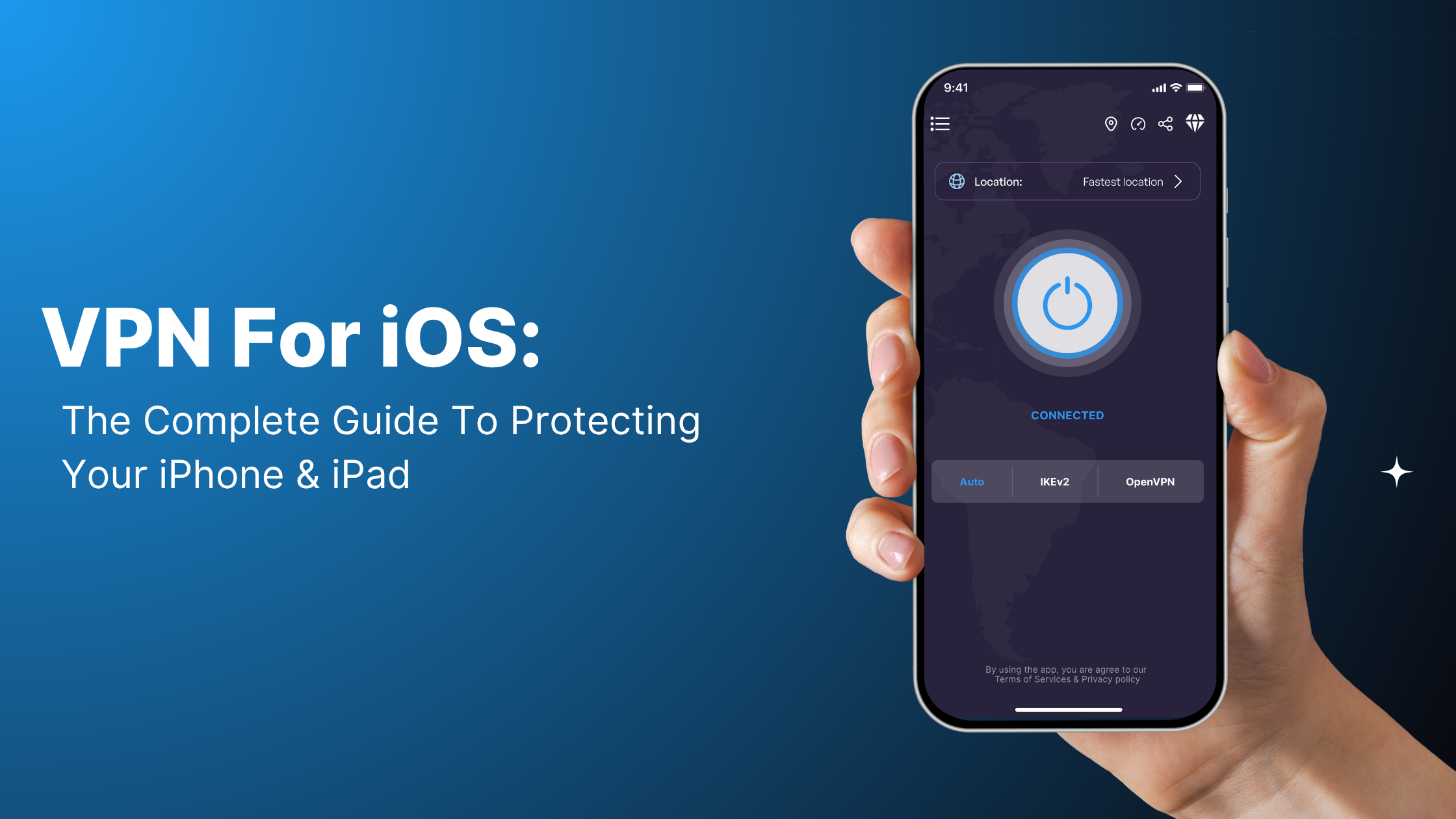
- Download VPN Super for iPhone from the App Store and open it.
- Tap the Location button and pick a country or server. VPN Super's free tier covers 20 countries and 42 locations, and Premium servers unlock the full list of 64 countries and 104 locations. If you're not sure which to pick, Fastest Location auto-selects the lowest-latency option for you.
- Tap Connect. VPN Super picks a working protocol automatically (Super, IKEv2, OpenVPN, or V2Ray), so you don't need to know what any of those mean.
This is the method that actually matters on public Wi-Fi somewhere you don't trust: a hotel, an airport lounge, a coffee shop before a flight. Anyone else on that network can potentially see unencrypted traffic passing through it, and a VPN wraps yours in encryption first. The same protection applies whether you're streaming with VPN Super's streaming VPN in a hotel room or just checking email before a flight.
What a VPN won't change
A VPN doesn't make you anonymous, and it won't change what Maps or Find My reports about you, because those read GPS. If your goal involves either of those apps, skip ahead to the next section.
How do you change your GPS location?
This is where most of the search results on this topic get complicated, and where most of the actual risk lives. There are three real options, in order of how much risk they carry.
Turn off location access for one app
If your problem is really just "I don't want this one app tracking exactly where I am," you don't need to spoof anything. Go to Settings → Privacy & Security → Location Services, tap the app, and set it to Never, Ask Next Time, or While Using the App. This changes what that specific app can see without touching GPS, your VPN, or any other app on your phone. Apple built this permission control for exactly this purpose, which makes it the safest option here.
Use Xcode's GPS simulator (for testing, not everyday use)
If you're a developer, or you just want to see how an app behaves in a different country before spending money in it, Apple's own Xcode includes a location simulator. It requires a Mac, an Apple ID, and connecting your iPhone or using the simulator's virtual device. No jailbreak is involved, and it doesn't violate the App Store's terms, because Apple built it for exactly this. It's overkill if you just want to hide from one app, but it's the one legitimate way to preview a different GPS position.
Consumer GPS-spoofing apps and jailbreaking
This is what most "fake GPS" and "GPS spoofer" searches are actually looking for: software like iTools, iAnyGo, or similar tools that override your reported GPS position system-wide. Before you install one, know what you're trading for it, and why it works worse than it used to.
Apple has tightened iOS with every release specifically to make this harder. Most of the popular spoofing tools were built for iOS 14 and older, back when jailbreaking was more straightforward. On iOS 17 or 18, the vendors selling these tools are usually working around the same restrictions Apple keeps closing, which means compatibility is inconsistent and updates can break the tool without warning.
The actual risks, plainly
- Faking your GPS location violates the App Store's Terms of Service. If a location-based game or app detects it, the consequence is usually a ban on that account, not a warning.
- Jailbreaking removes the security protections iOS normally enforces, which is what lets these tools override your GPS in the first place. That same removal is what makes your phone more exposed to malware from other sources afterward.
- Jailbreaking can void your warranty and, on some models and iOS versions, cause instability that a restore doesn't fully fix.
- Sideloaded spoofing software isn't reviewed by Apple the way App Store apps are, so you're trusting a third-party developer with system-level access to your phone.
None of that makes spoofing impossible. It's a trade-off, and the terms of that trade get worse with every iOS update.
How do you change your Apple ID country or region?
This one gets lumped in with "changing your location," but it's actually a billing setting. Your Apple ID's country determines which App Store catalog and payment methods you can use, and it has no effect on your GPS position or your IP address.
The short version: open Settings, tap your name, go to Media & Purchases → View Account → Country/Region, and follow the prompts. You'll need a valid payment method for the new country, and Apple requires any account balance to be at zero first. For the full requirements, the troubleshooting steps if the option won't budge, and what happens to your apps and subscriptions afterward, see how to change your Apple ID country or region.
How do you verify it worked?
If you changed your IP with a VPN, check it inside the app rather than guessing. VPN Super's app menu (☰) includes a live "Show my IP" view with your current IP address and a map. Connect, open the menu, and confirm the location shown matches the server you picked. If you changed a GPS-based method instead (Location Services permission, or Xcode's simulator), the app you changed it for is the real test: open that app and see what it reports.
Recommended setup
- Pick your server first: Premium servers cover 64 countries and 104 locations, versus 20 countries and 42 locations on the free tier, which matters if the location you need isn't on the free list.
- Use Fastest Location if you don't have a specific country in mind; it auto-picks the lowest-latency option.
- Check VPN Super features if you want the details on its no-activity-logs policy before you connect on a network you don't trust.
FAQ
Can you actually change your location on an iPhone?
You can change what your IP address reports (with a VPN or by changing networks) and, separately, what your GPS reports (through Location Services permissions, Xcode's simulator, or third-party spoofing tools). No single setting changes both, because they're independent systems.
Does a VPN change your GPS location, or just your IP address?
Just your IP address. A VPN reroutes your internet traffic through a different server, which is what websites and most apps see. Your phone's GPS chip keeps reporting your actual physical position regardless of whether a VPN is connected.
How do you change your location on an iPhone without a VPN?
For IP-based location, connecting to a different Wi-Fi network in a different place works, though it's not practical for travel or privacy on the go. For GPS-based location, Location Services permissions, Xcode's simulator, or a third-party spoofing tool are the options. A VPN isn't involved in any of them.
Is it against Apple's rules to fake your GPS location?
Yes, for third-party spoofing apps and jailbreak-based methods. Apple's App Store Terms of Service prohibit manipulating location data to deceive apps, and apps that detect it can ban the account. Xcode's built-in simulator is exempt from that risk, since it's Apple's own developer tool, made for testing.
Can you get banned for using a fake GPS location?
Yes, particularly in location-based games like Pokémon GO, where spoofing is actively detected and enforced against. The ban usually applies to the game account, though repeated violations across apps can affect your Apple ID standing more broadly.
How do you change the location for just one app, without affecting the whole phone?
Go to Settings → Privacy & Security → Location Services, tap the app, and choose Never, Ask Next Time, or While Using the App. This is permission control, not spoofing, and it only affects that one app.
Does changing your iPhone's location affect Find My or Life360?
A VPN doesn't affect either, since both read GPS, not your IP address. Turning off Location Services for either app (or for the phone system-wide) stops them from reporting your position. That also disables the safety features those apps are usually installed for, so weigh that before turning it off entirely.
Is iTools, or similar GPS-spoofing software, safe to use?
It carries real risk: App Store Terms of Service violations, potential app or game bans, and, if it requires a jailbreak, reduced system security and possible warranty issues. Compatibility with current iOS versions is also inconsistent, since most of these tools were built for iOS 14 and older.
How do you change your location on iOS 17 or 18 specifically?
The methods are the same as any other iOS version: a VPN for IP, Location Services or Xcode for GPS. Consumer spoofing tools and jailbreaks are less reliable on iOS 17 and 18 than they were on older versions, because Apple has continued tightening the restrictions those tools rely on.



 VPN for Windows
 VPN for Android
 VPN for iOS
 VPN for MacOS
 Apple TV
 Android TV